
INT NLE Tools helps editors make better use of timecode while working in non-linear editing applications.
It lets you check 29.97 DF / 59.94 DF converted timecode while editing at 23.976fps, and show timecode on tablets, laptops, and browser-based displays in another room during editing sessions, screenings, VFX reviews, and client reviews.
Built around Blackmagic Design DaVinci Resolve Studio and Adobe Premiere, INT NLE Tools makes it easier for teams to share the same timecode reference.
The macOS version is currently available. The Windows update is in preparation.
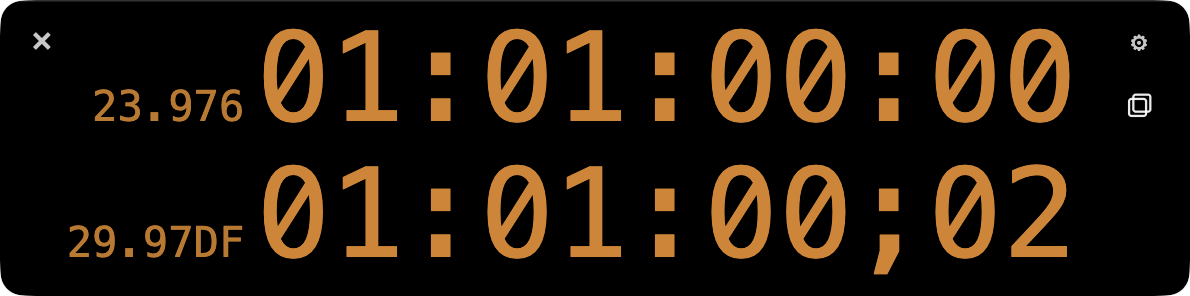
May the TimeCode be with you.
INT NLE Tools is centered on INT TimeCode Tool and helps make timecode easier to check and share in the edit suite.
Version 1.0 includes INT TimeCode Tool v1.2 for timecode display in DaVinci Resolve Studio, INT TC Server for displaying timecode on tablets and computers, and INT TC Sender for Adobe Premiere for sending Timeline TC from Premiere.
Pull-down TC Display
Quickly check 29.97 DF / 59.94 DF equivalent TC while editing at 23.976fps.
Supported: DaVinci Resolve Studio
Network TC Monitoring
Display timeline timecode on tablets, computers, and other browser devices on the same local network.
Supported: DaVinci Resolve Studio, Adobe Premiere
Pull-down TC Display
Pull-down TC Display is a Workflow Integration Plugin feature for DaVinci Resolve Studio. It makes timeline timecode easier to check while editing in DaVinci Resolve Studio.
While editing at 23.976fps or 29.97 NDF, it displays converted timecode equivalent to 29.97 DF / 59.94 DF after 2:3 pull-down. This is useful when you need to check delivery timecode for broadcast workflows while editing.
Display modes


You can switch between Dual display, Timeline TC only, and Converted TC only. Dual shows timeline timecode and converted timecode side by side.
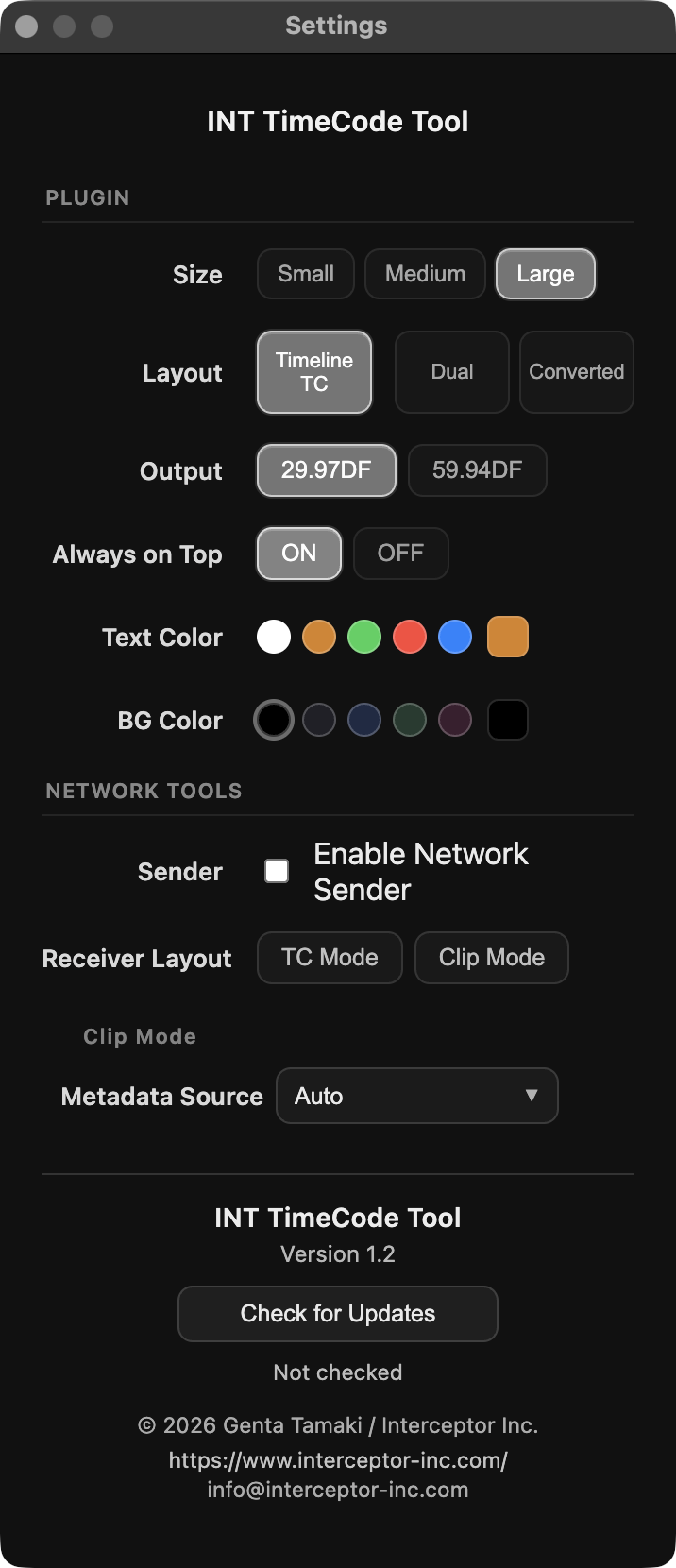
Text color and display size can also be adjusted.
INT BurnIn for Resolve
Using INT BurnIn for Resolve, which is installed together with INT NLE Tools, you can burn timecode into the viewer, SDI / HDMI output, and rendered output.
Text size, position, and layout can be adjusted so that timecode is visible in previews and output video.
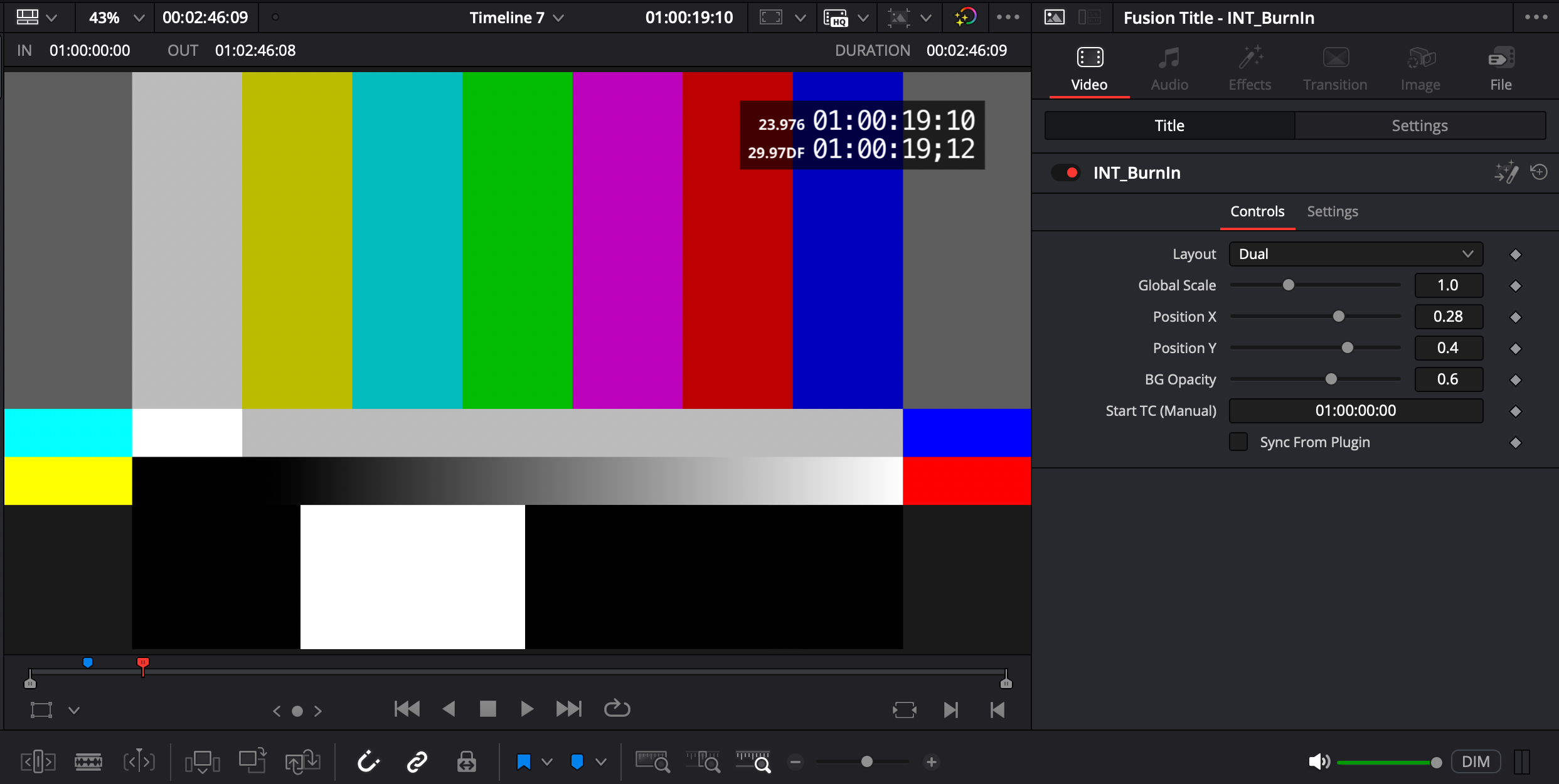
Network TC Monitoring
Display timecode from your non-linear editing software on another device, such as a tablet or computer, over the local network.
Timecode that would otherwise stay inside the editing interface can be viewed as a dedicated timecode display on another browser device.
Timecode sent from DaVinci Resolve Studio or Adobe Premiere is relayed through INT TC Server and displayed on each device.
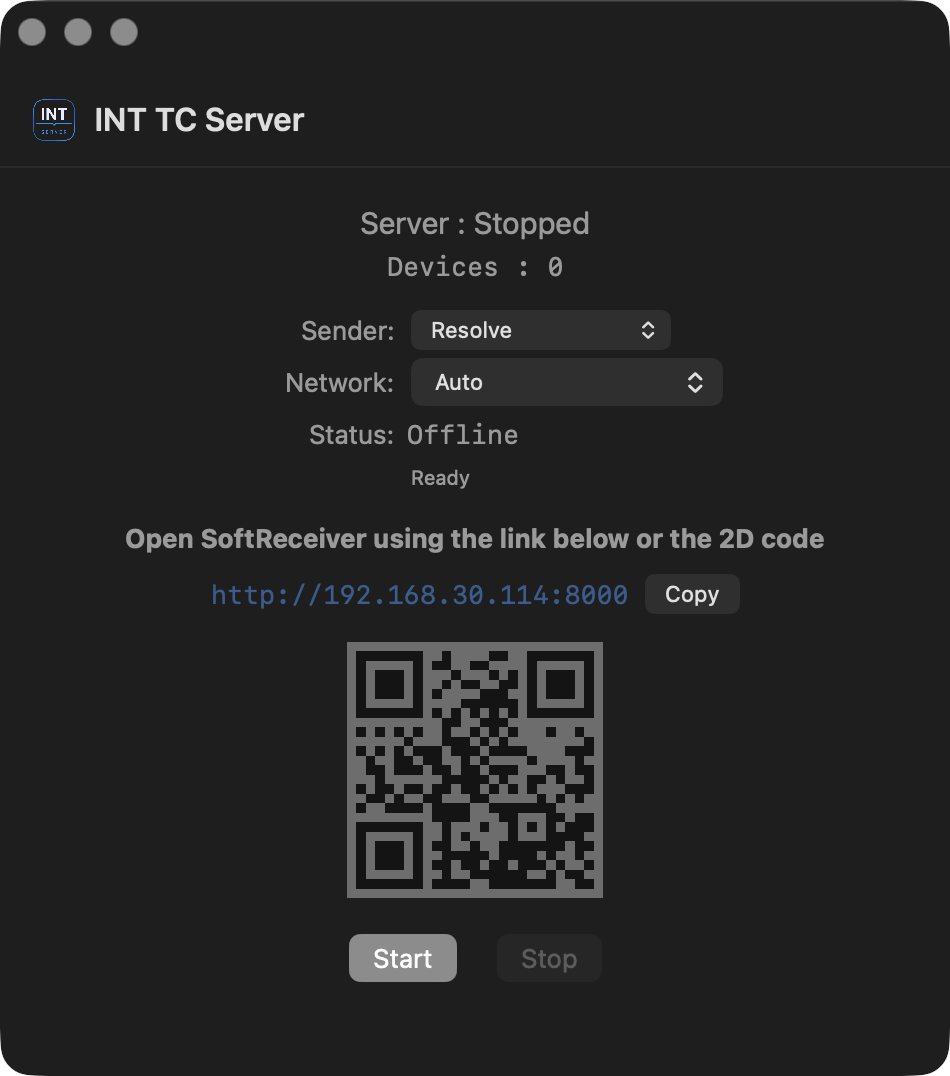
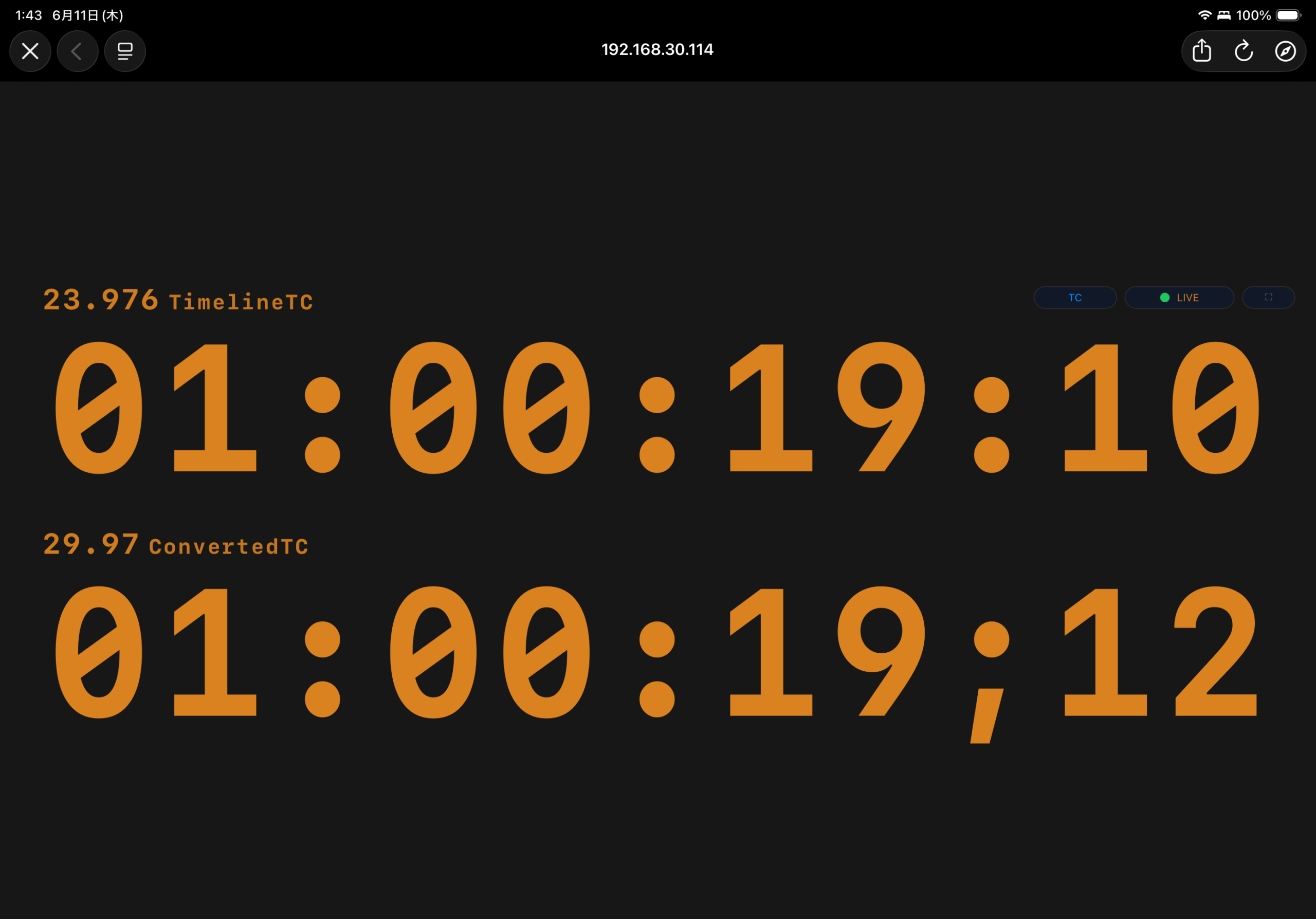
Because the display runs in a web browser, tablets and computers can show timecode synchronized with the current timeline. Directors, producers, clients, and review staff can follow the same timecode during editing sessions and screenings.
TC Mode
TC Mode is used as a timecode display.
When receiving from DaVinci Resolve Studio, you can choose Dual, Timeline TC, or Converted. When receiving timecode from Adobe Premiere, Timeline TC display is supported.
Text color can be changed from the settings screen.
Clip Mode
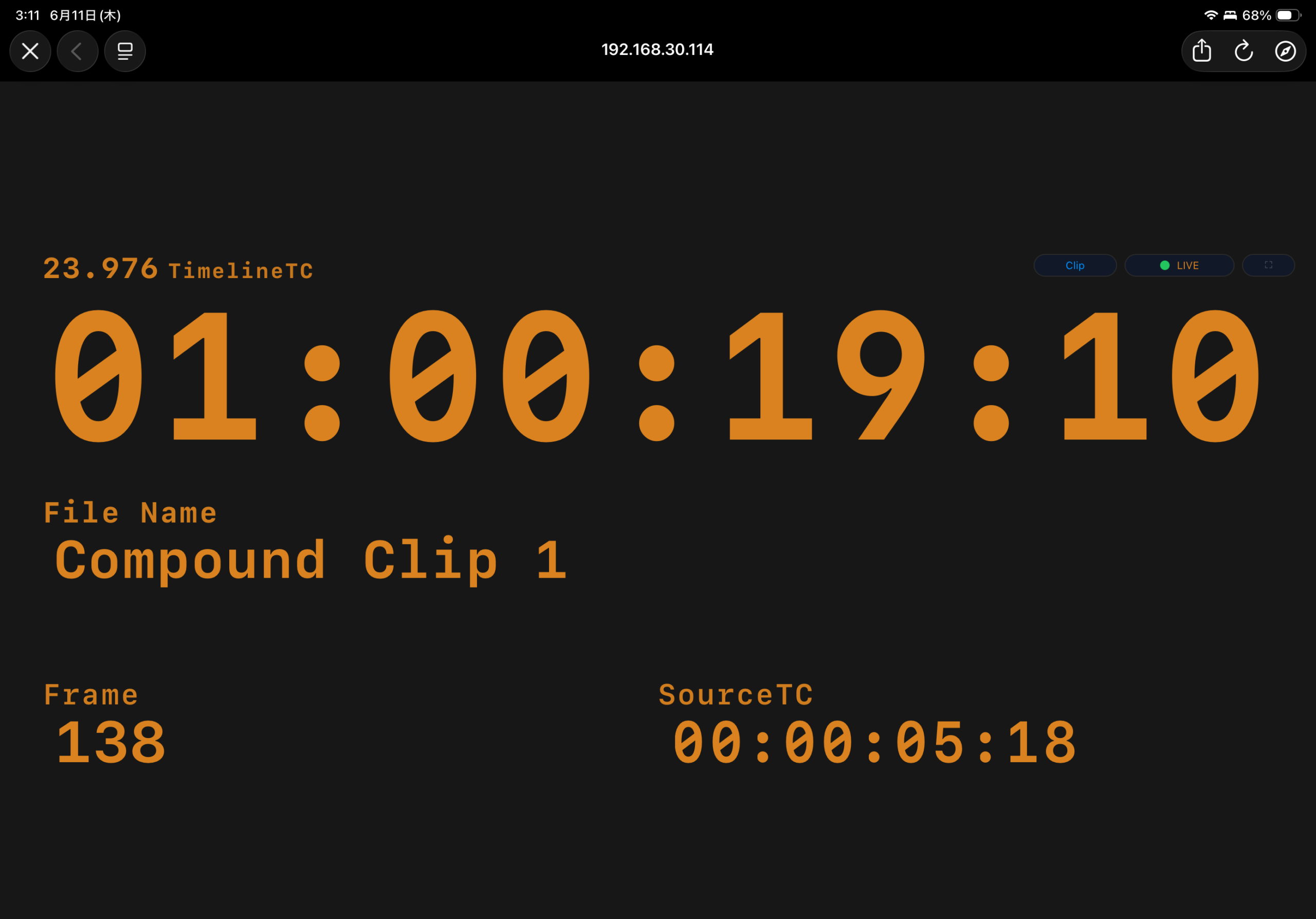
Clip Mode displays clip metadata while playback is stopped.
During playback it shows timeline timecode. When playback stops, it displays file name, frame, and source timecode for the clip at the playhead position.
It is useful when checking clip-level information for VFX, animation, and review workflows.
Clip Mode is a feature for DaVinci Resolve Studio.
INT TC Sender for Adobe Premiere
In addition to sending from DaVinci Resolve Studio, INT NLE Tools can send Timeline TC from Adobe Premiere.
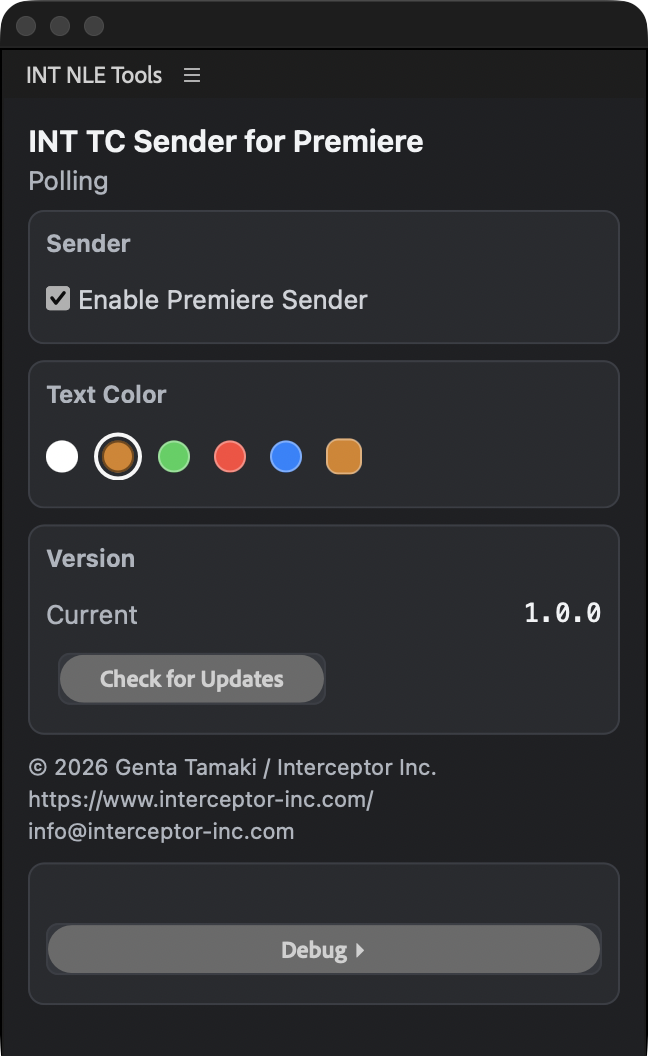
INT TC Sender for Adobe Premiere sends Premiere Timeline TC to INT TC Server.
This version currently supports TC Mode only.
- UXP: Premiere 25.6 or later
- Legacy CEP: Premiere 2024 - 2025.5
Timeline TC sent from Adobe Premiere can be displayed on browser devices through INT TC Server.
Included items
- INT TimeCode Tool v1.2
- INT TC Server v1.0
- INT BurnIn for Resolve v1.0
- INT TC Sender for Adobe Premiere
- Japanese / English documentation
- Uninstaller
The macOS version is currently available. The Windows update is in preparation. Existing INT TimeCode Tool v1 for Windows users can continue using it. Users purchasing now for Windows are also eligible for updates within the same major version.
System requirements
- macOS version: macOS 15 Sequoia or later
- Blackmagic Design DaVinci Resolve Studio: 20 or later
- Adobe Premiere: UXP - Premiere 25.6 or later / Legacy CEP - Premiere 2024 - 2025.5
- Network TC Monitoring requires devices on the same local network.
Price and purchase
Price: $19 - One-time purchase.
One license can be used by one primary user or on one shared editing workstation. Commercial use is allowed.
The same primary user may install it on multiple work environments within the same organization. On a fixed shared editing workstation, different operators may use the same workstation under one license.
Multiple primary users, multiple edit suites, or simultaneous use on multiple workstations require licenses according to the number of users or workstations. Tablets, laptops, and browser devices used only for Network TC Monitoring do not require additional licenses.
Please contact us for multi-license purchases and deployment. Updates within the same major version are free.
For Windows users: existing INT TimeCode Tool v1 for Windows users can continue using it. The INT NLE Tools Windows update is in preparation. Users purchasing now for Windows are also eligible for updates within the same major version.
After payment, download instructions will be shown.
Installation and uninstall
The installer package includes Install INT NLE Tools.pkg. Follow the installer instructions to install the tools.
Uninstall INT NLE Tools.app is included for uninstalling. Japanese and English documentation is also included for post-installation reference.
FAQ
Can I use it with the free version of DaVinci Resolve?
The DaVinci Resolve integration in INT NLE Tools runs as a Workflow Integration Plugin. It supports DaVinci Resolve Studio only.
Can I use it on timelines other than 23.976fps?
The main purpose of Pull-down TC Display is to check 29.97 DF / 59.94 DF equivalent TC while editing at 23.976fps, but it can also be used for workflows such as displaying 29.97 NDF and 29.97 DF side by side.
The timeline timecode shown by Network TC Monitoring can be from any frame rate.
Can I use it commercially?
Yes. One license can be used by one primary user or on one shared editing workstation.
The same primary user may install it on multiple work environments within the same organization. On a fixed shared editing workstation, different operators may use the same workstation under one license.
Multiple primary users, multiple edit suites, or simultaneous use on multiple workstations require licenses according to the number of users or workstations.
Tablets, laptops, and browser devices used only for Network TC Monitoring do not require additional licenses.
Please contact us for multi-license purchases and deployment.
Are updates free?
Updates within the same major version are free.
Can I use all features with Premiere?
This version supports sending Timeline TC from Adobe Premiere to INT TC Server and displaying it in Network TC Monitoring TC Mode.
Clip Mode and INT BurnIn for Resolve integration are features for DaVinci Resolve Studio.
Is the Windows version available?
Existing INT TimeCode Tool v1 for Windows users can continue using it. The INT NLE Tools Windows update is in preparation.
Users purchasing now for Windows are also eligible for updates within the same major version.
Where can I download it after purchase?
After payment, download instructions will be shown.
If you lose the download link, contact us with the email address used for payment. After confirmation, we can reissue the download link.
Notes
- INT NLE Tools is an independently developed production support tool, not an official NLE feature.
- Network TC Monitoring is intended for use on a local network.
Previous INT TimeCode Tool Page
The previous INT TimeCode Tool page remains available as archived product information.
For current sales, support, and update information, please refer to this INT NLE Tools page.
Support
For questions, contact us at:
For usage details, see the Online User Guide.
Specified Commercial Transactions Act
INT NLE Tools is independently developed and provided by Interceptor Inc. It is not an official product of Blackmagic Design, Adobe, Apple, or Microsoft. Company names and product names mentioned on this page are trademarks or registered trademarks of their respective owners.