INT DCP Baker v2 User Guide
Product version: 2.0.0
Document revision: 1.3
Document date: 2026-11-02
1. Introduction
INT DCP Baker v2 is a macOS application that writes existing DCPs to media for cinema delivery. It does not create DCPs or perform DCP Validation to check standards compliance or content.
The two basic modes are PREP and BAKE. In PREP, select the DCP source and target media to prepare for writing. BAKE writes the DCP to the selected media.
For one target, you can format and write the media, or use Append (APPEND) to add a DCP to existing media. For multiple targets, choose Sequential (Serial) to process one at a time, or Parallel to process them simultaneously.
With Direct BAKE in v2, you do not need to create a delivery disk image in advance. File system and operating-environment details are collected in Appendix A.
2. Installation
Use the Apple Silicon or Intel installer package (.pkg) for this Mac. You can check the processor or chip in About This Mac in the Apple menu. Finish any BAKE, Append (APPEND), or finalization after cancellation, then quit Baker normally before opening the Installer.
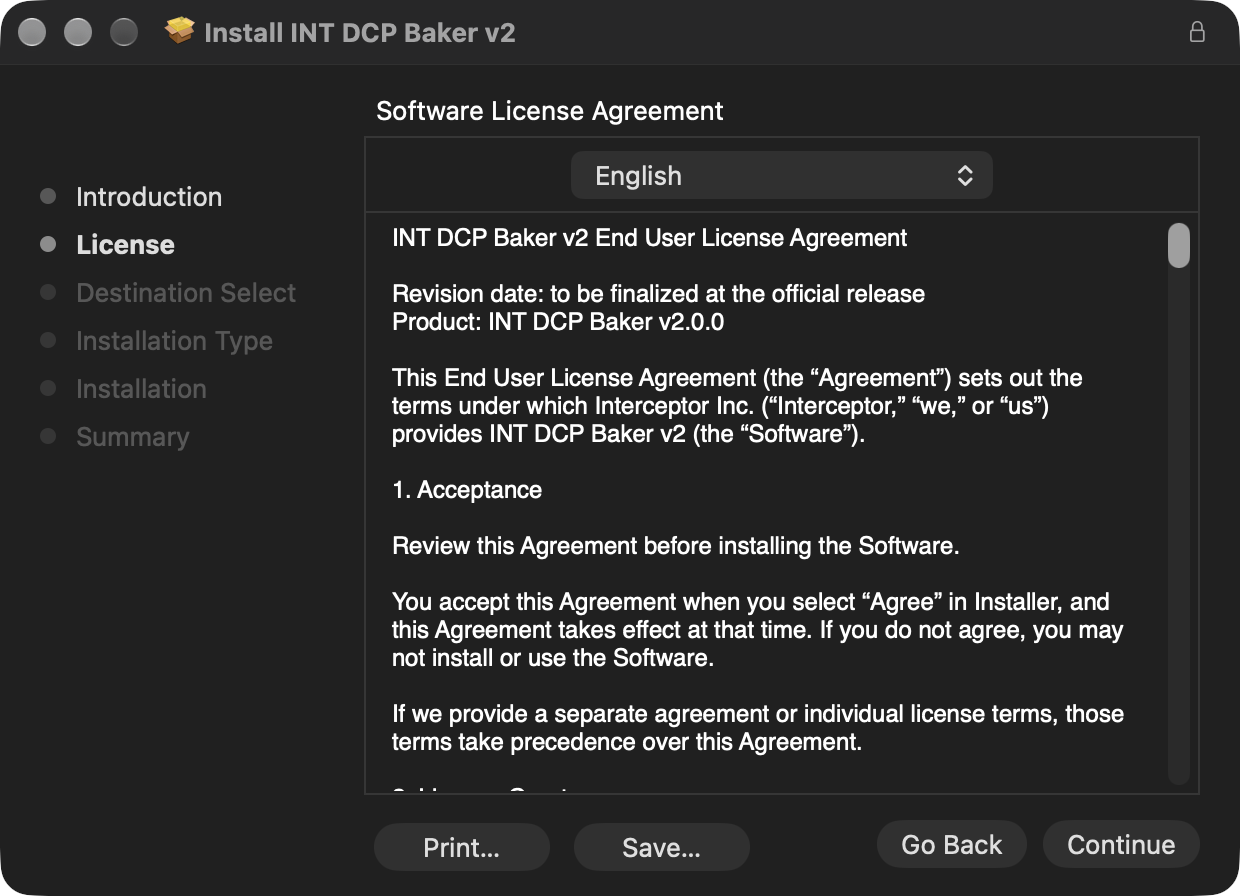
Follow the Installer instructions. Read the license agreement and use the standard acceptance controls if you agree. Otherwise, cancel installation. Complete any required macOS administrator authorization and check that the Installer reports completion.
The product is installed in Applications / INT DCP Baker v2. This folder contains the application, uninstaller, and Docs. Do not move or delete individual components.
To update an existing installation or restore missing product components, run the Installer for the same architecture again. You do not need to delete settings or BAKE Reports manually. You do not need to remove v1 to install or update v2.
Allow background items
macOS may display a notification about background items added by INT DCP Baker v2.
The BAKE feature in INT DCP Baker v2 requires a helper service that runs in the background.
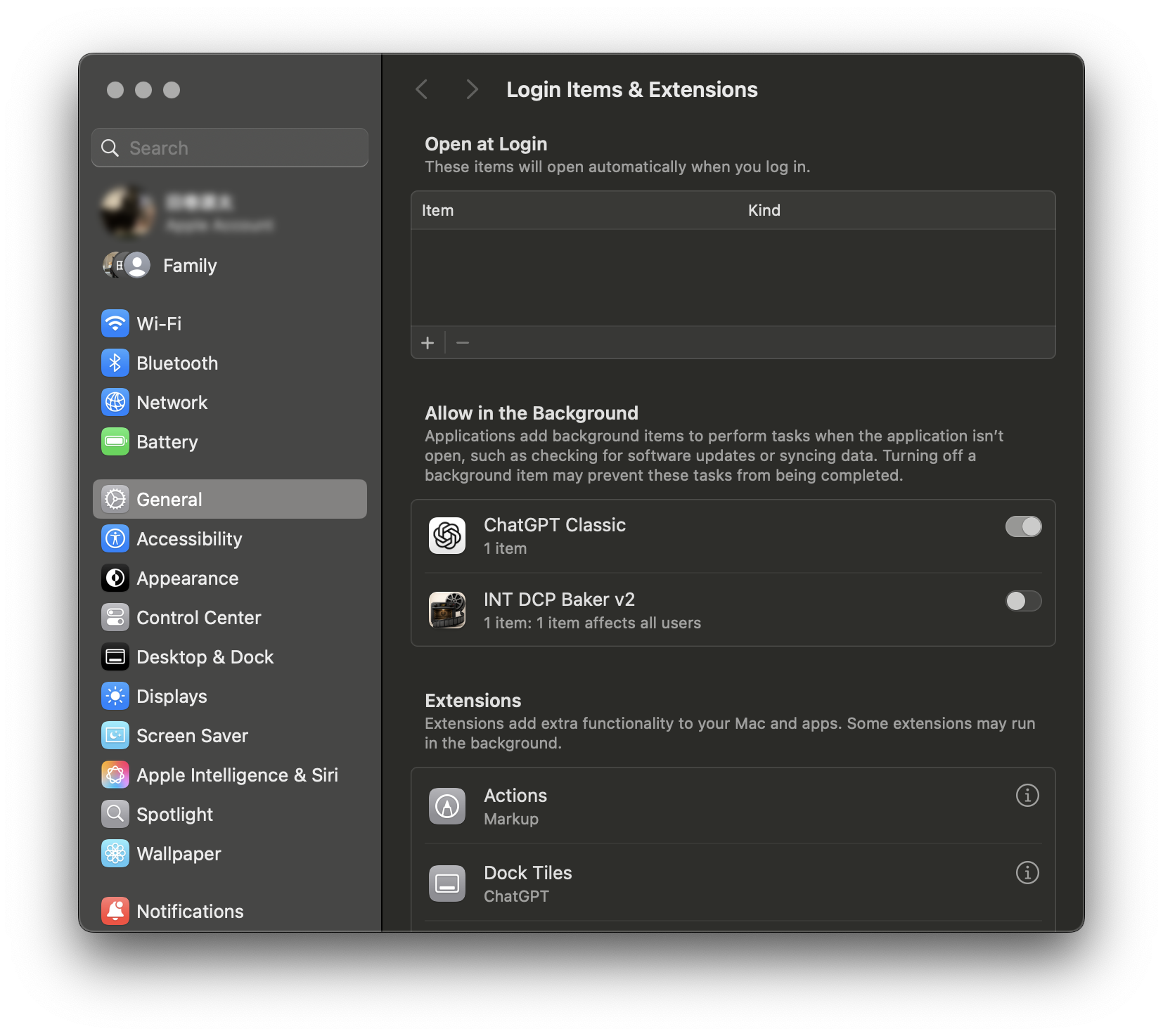
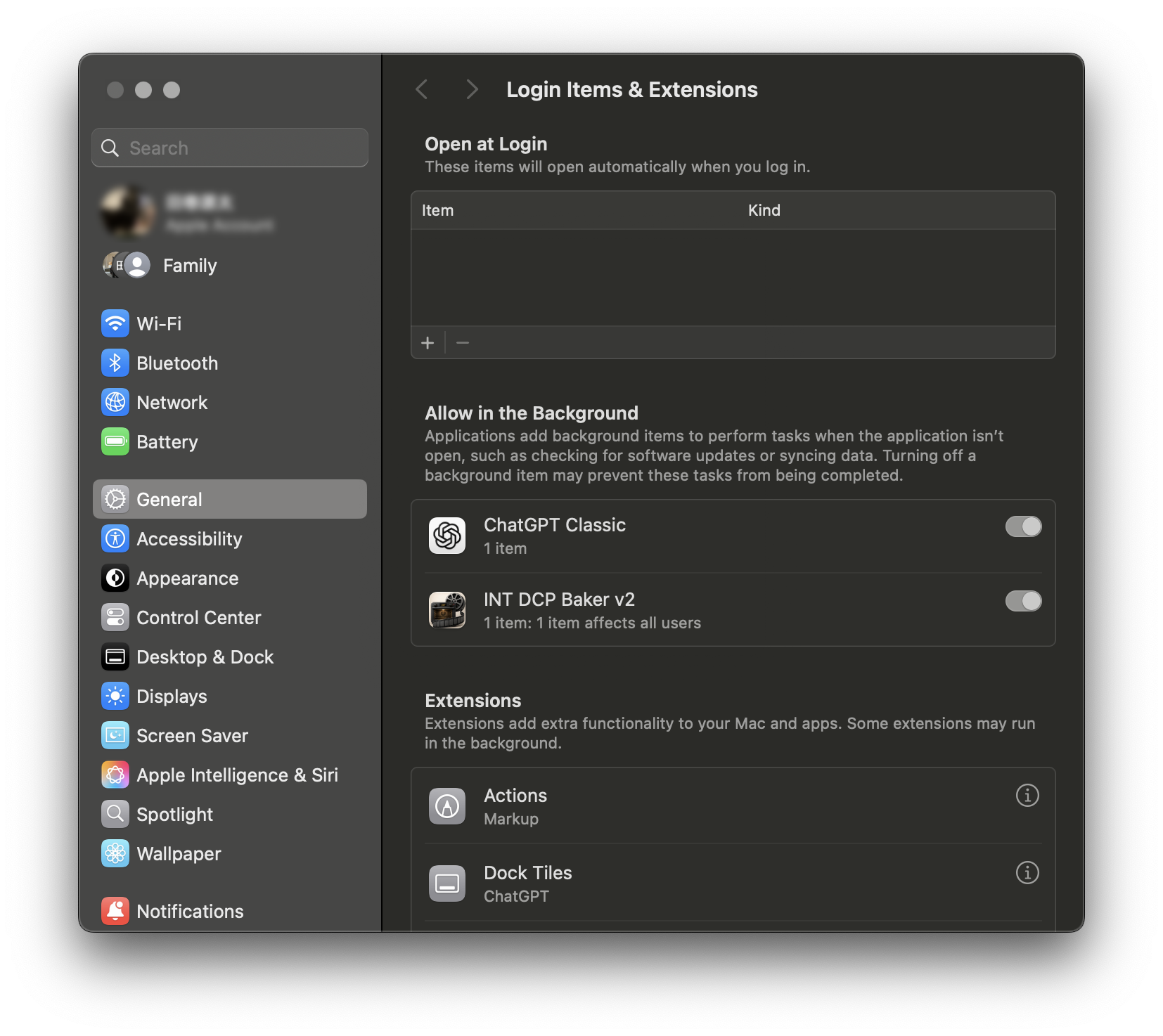
In System Settings, open General → Login Items & Extensions and enable INT DCP Baker v2.
If you change this setting, quit INT DCP Baker v2 and open it again. You do not need to restart macOS.
① Baker permission prompt
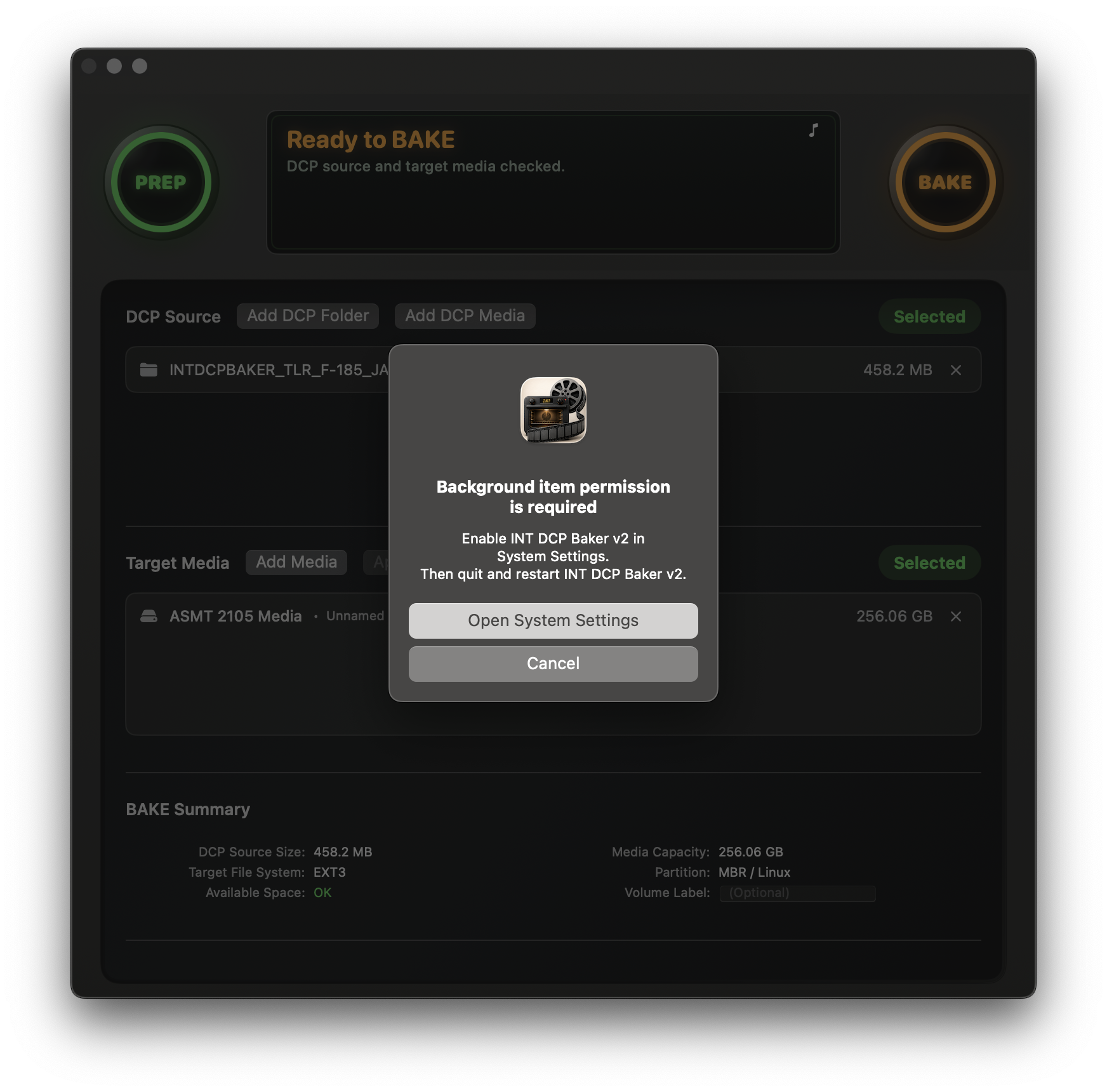
② macOS System Settings: OFF / ③ macOS System Settings: ON
3. License
One license can activate up to two Macs, which may be used simultaneously. A genuine v1 license can also be used with v2.0.0 at no additional purchase cost. Use your existing license key. The detailed terms are provided in the Installer software license agreement.
3.1 License activation
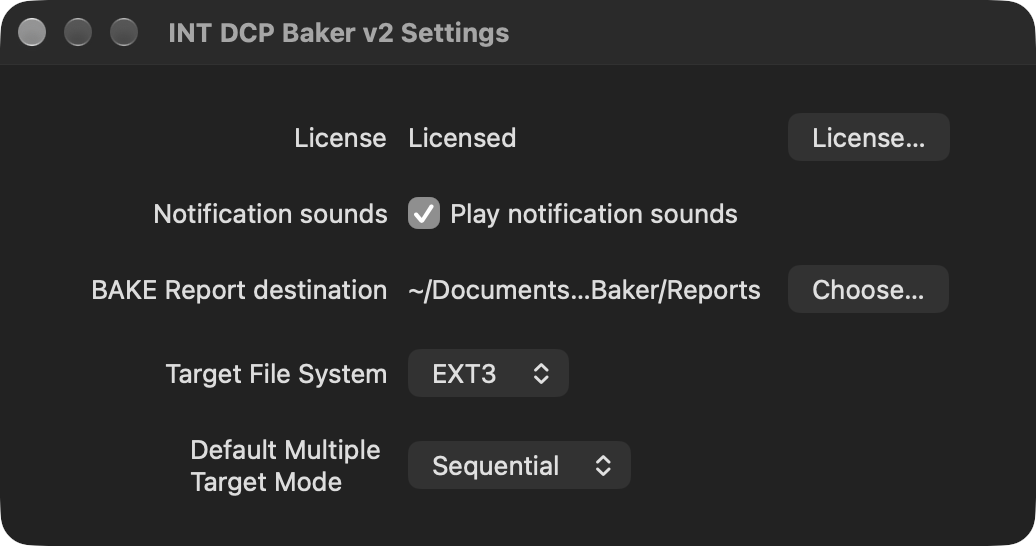
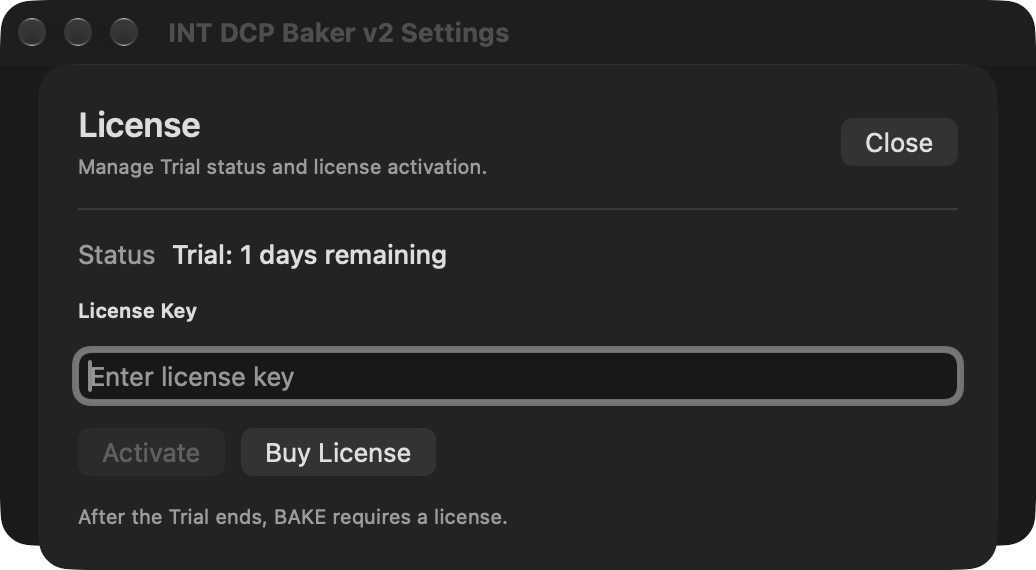
Open License… in Settings, enter your key, and press Activate. Activation requires an internet connection. On success, License activation completed. is displayed and the status changes to Licensed.
Product license activation is separate from the macOS administrator authorization required for media operations. Activating a license does not start BAKE automatically; you must still start it and review the final confirmation.
3.2 Trial
You can use the product's features during the seven-day Trial from the first launch. The status display and License panel show the Trial status and remaining days. After the Trial ends, license activation is required for BAKE and Append (APPEND).
If you press BAKE after the Trial ends, the License panel opens. After activation, review your selections and start BAKE again yourself.
For questions, contact Support.
4. PREP
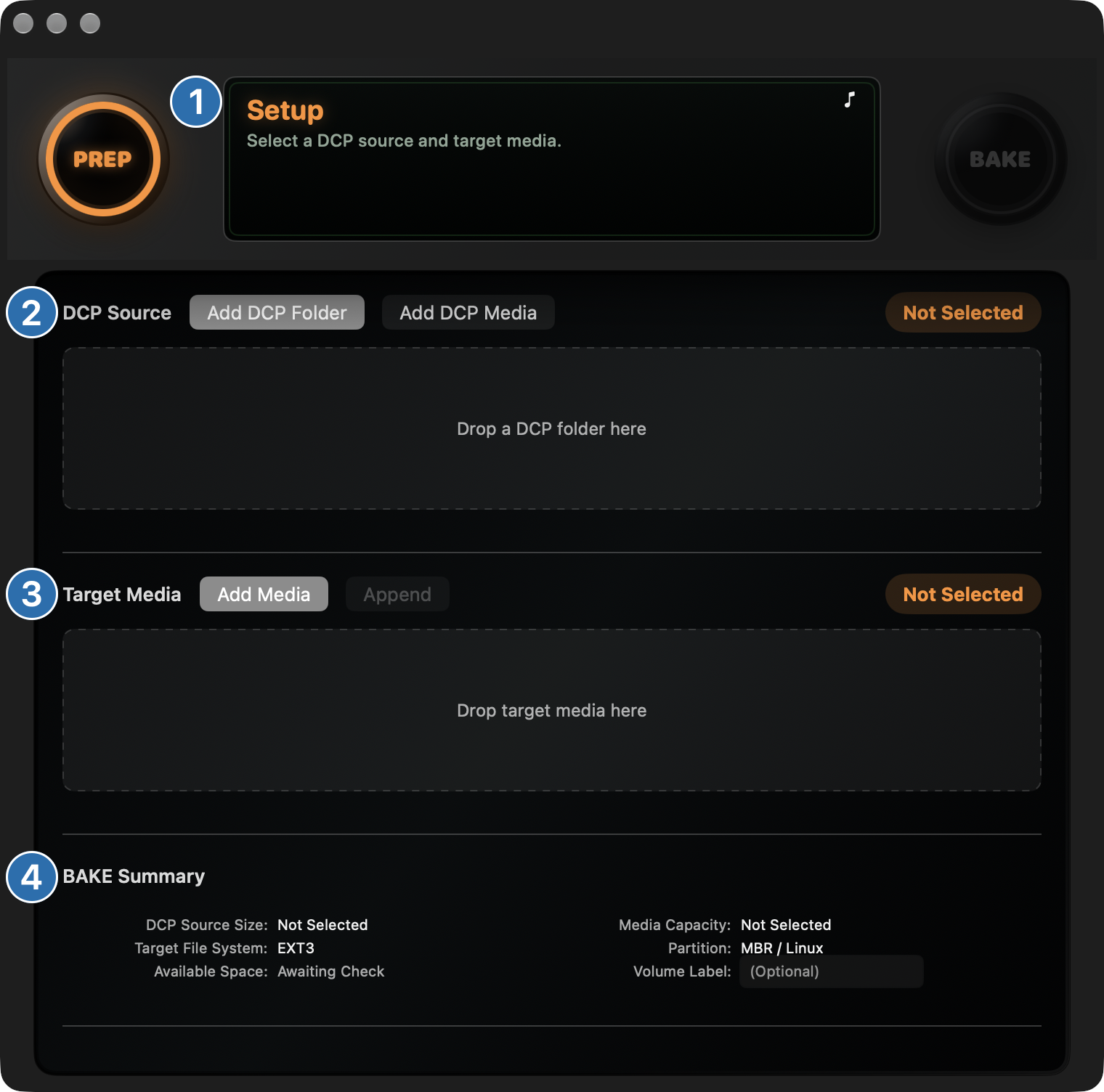
① Status display and lamps show the overall state. ② DCP Source lists the DCPs to write. ③ The Target Media area shows the selected media. ④ BAKE Summary shows capacity and the format to be created.
4.1 DCP source
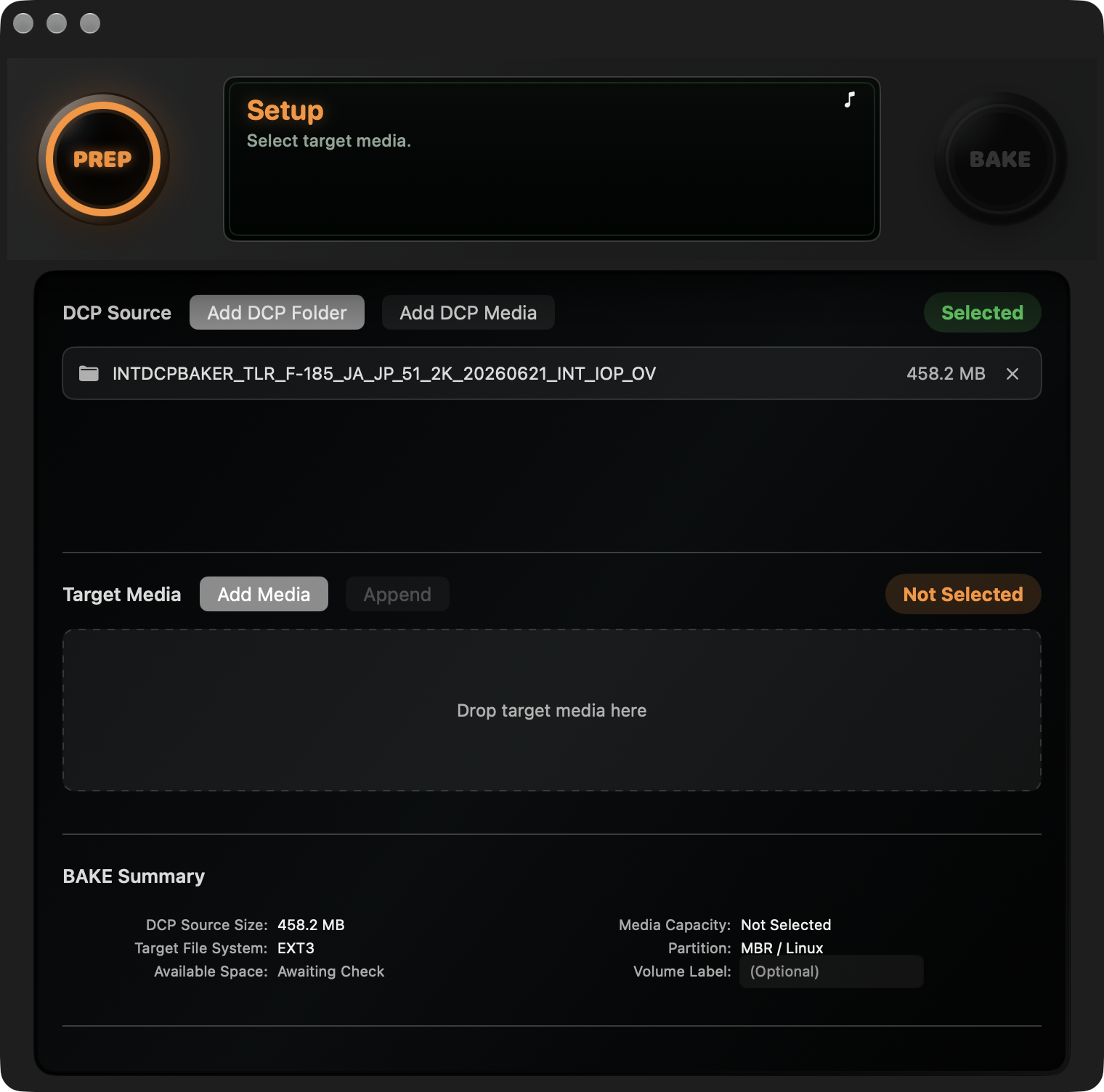
Select a source with Add DCP Folder, or drag it in from Finder. Select the folder containing the complete DCP, rather than individual video or audio files.
To write multiple DCPs to the same media, select several folders together or add more after selecting the first DCP source.
The list shows the recognized DCP names and sizes. Use × to remove an item from the list.
A DCP may not be selectable if its file structure is incomplete. This checks the source structure used for writing; it is not DCP Validation. If excluded files are reported, review them.
EXT2 / EXT3 source media
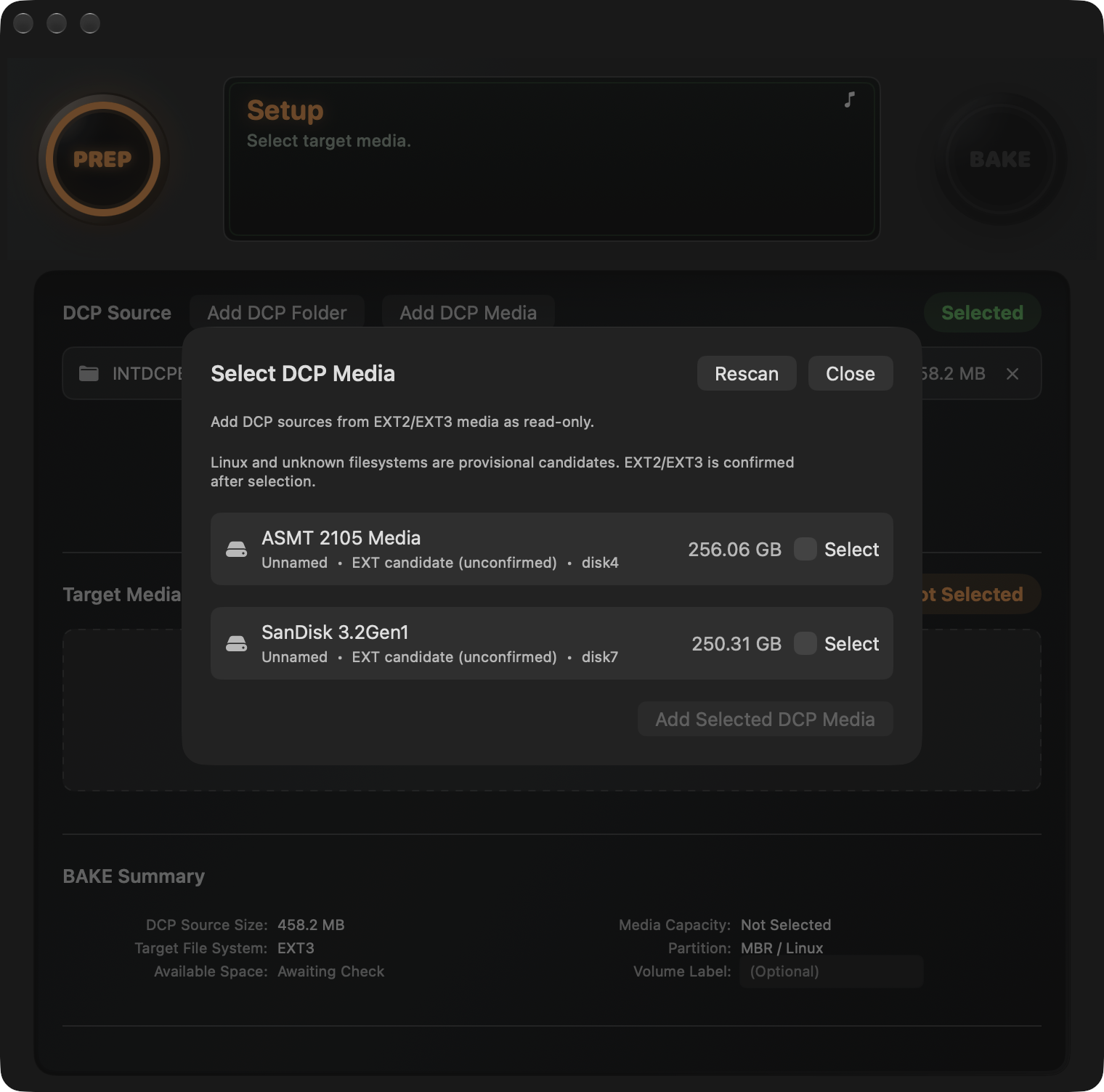
You can select DCPs already recorded on EXT2 / EXT3 media as sources. Choose Add DCP Media, check the name and capacity, and confirm with Add Selected DCP Media. After any required macOS authorization and inspection, the DCPs are added to the list. Sources are read-only and must be on separate media from the target.
4.2 Target media
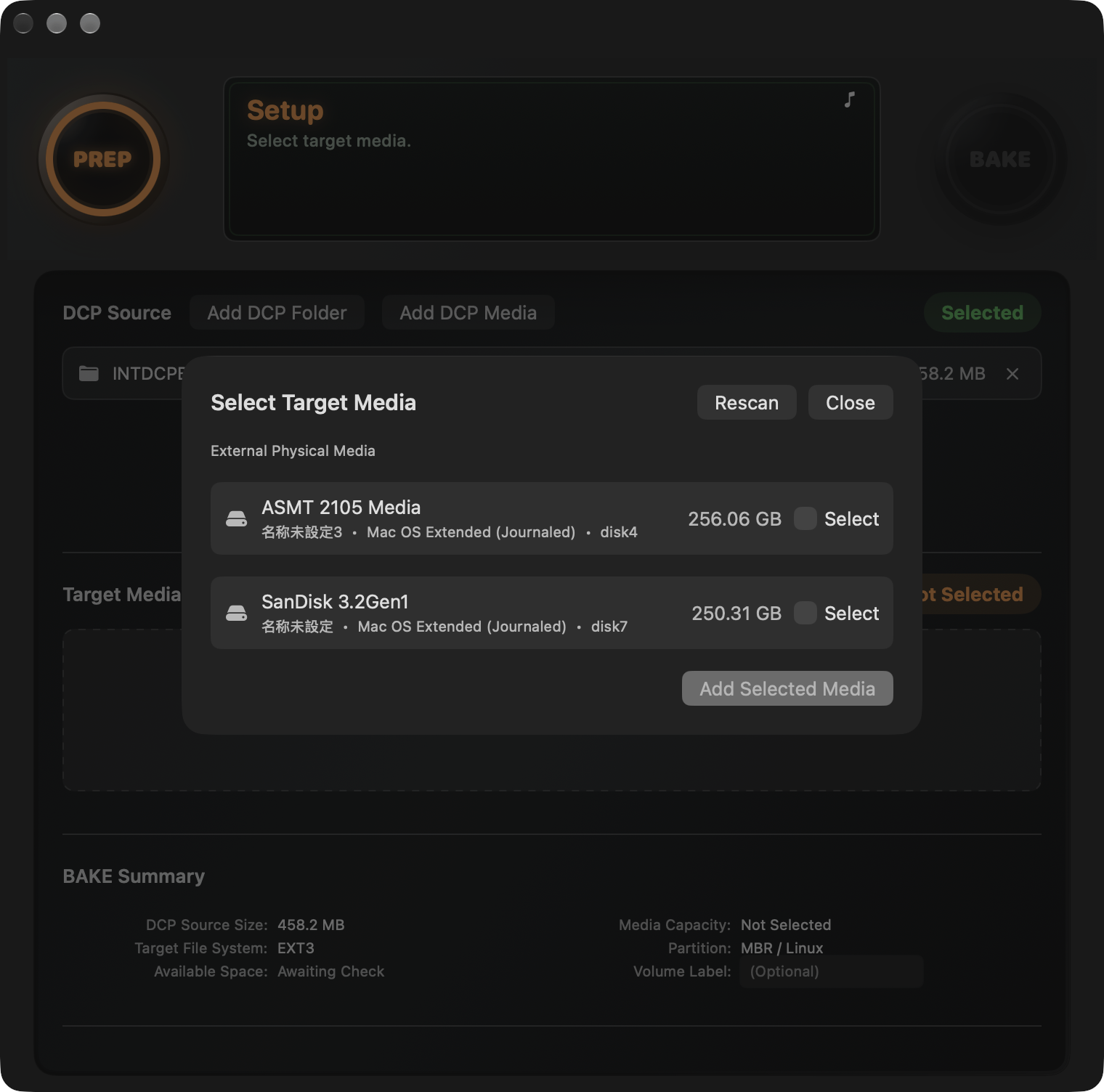
Use Add Media to display candidates. Check the name, capacity, current format, and disk ID. Select the checkbox for the target and confirm with Add Selected Media. Media mounted in macOS can also be dragged from Finder into this area. Folders or files inside a volume, and unmounted EXT media, cannot be added by drag and drop.
You can select up to four targets. × clears a selection; it does not erase the media. Normal BAKE erases all selected targets, so do not select a drive containing the DCP source or the Mac's system.
A disk ID is an address that can change with the connection state. Do not identify a target by its number or displayed name alone; also compare its capacity and other details. Disconnection or changed identity information cancels the ready state. Check the connection, then use Rescan and reselect the media as needed. See Appendix A.2.
Volume Label is an optional label for the target and is blank by default. It does not change the DCP folder name. The limit is 16 UTF-8 bytes, not 16 characters when using multibyte text such as Japanese. Append (APPEND) retains the existing label without changing it.
4.3 BAKE Summary
BAKE Summary shows the total DCP size, media capacity, available space, and file system to be created. BAKE cannot start if capacity is insufficient or the state is unknown. Target File System is the format created by BAKE, rather than the media's current format. Choose EXT3 or EXT2 in Settings.
When preparation is complete, the status display shows Ready to BAKE, with a green PREP lamp and an orange BAKE lamp (PREP main window).
5. BAKE
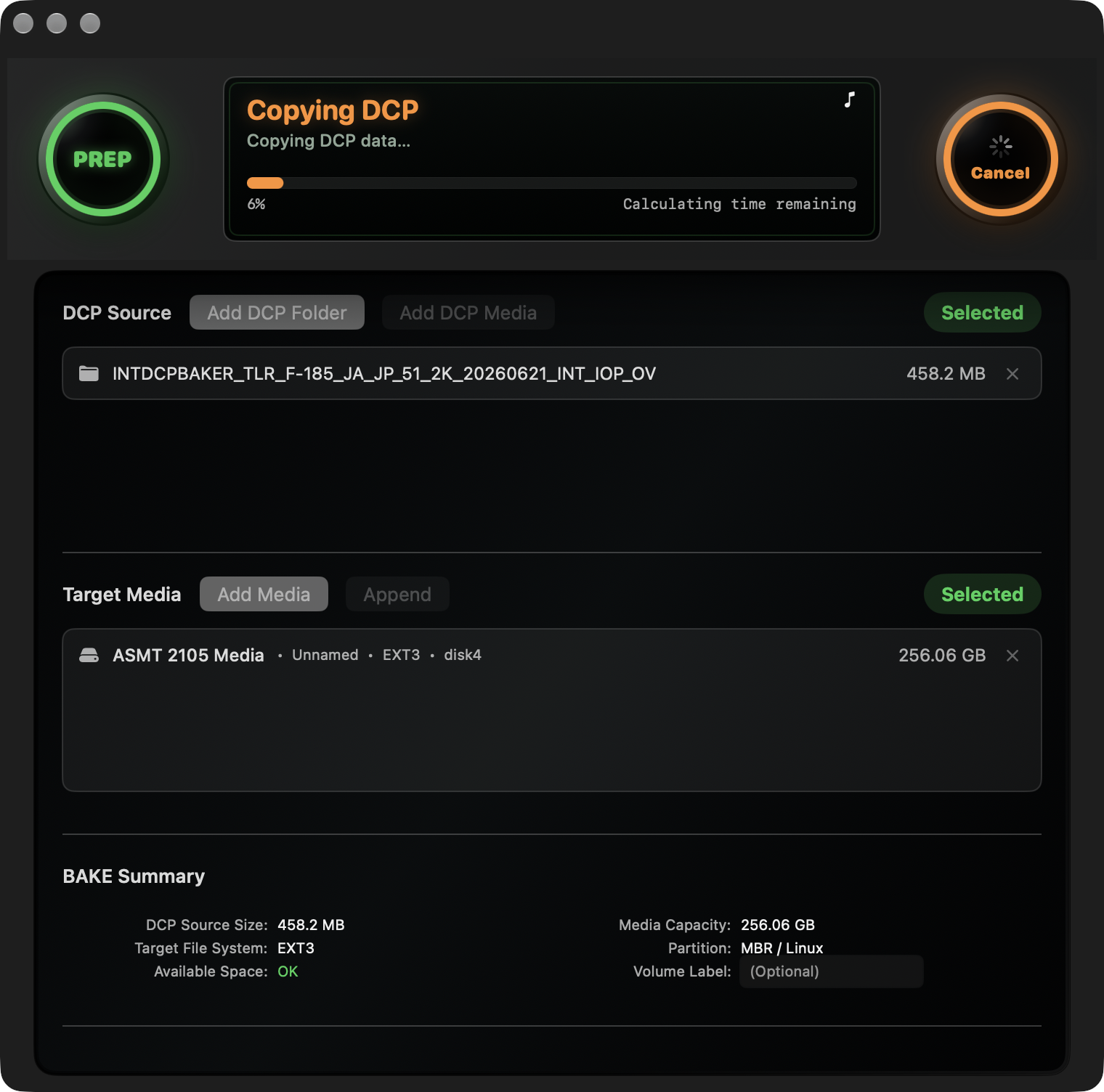
The status display shows the overall operation. Normal BAKE proceeds through FORMAT, COPY, VERIFY, and finalization. With multiple media, information is shown for each target.
5.1 Single media
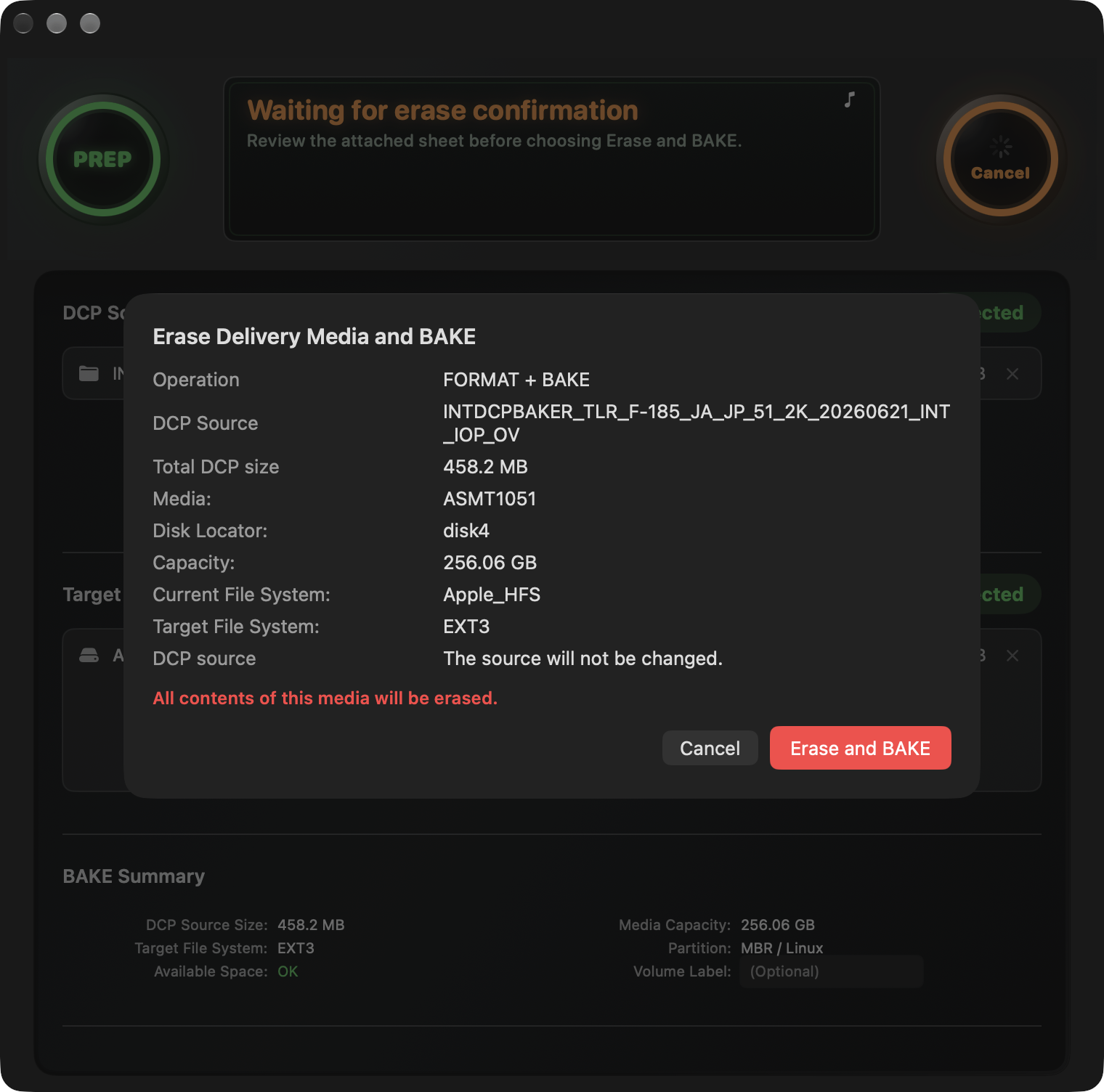
BAKE writes to one target medium. All DCP sources in the list are written to that medium.
Warning: All contents of the target will be erased. Cancelling cannot undo this.
If the target is wrong or you cannot identify it, choose Cancel to return.
Press BAKE to begin the pre-start checks and display the Erase Delivery Media and BAKE final confirmation sheet. Check the source, target name and capacity, and format to be created. Only if they are correct, press Erase and BAKE. Complete macOS authorization if requested; processing then proceeds through FORMAT, COPY, VERIFY, and finalization.
macOS authorization grants permission for media operations. Authorization alone does not establish that the target is correct; review the final confirmation sheet as well. Explicitly cancelling authorization prevents writing from starting. Selections are retained while safety conditions are checked again, and the display returns to Ready to BAKE when those conditions are met.
Operation display
| Phase | What happens |
|---|---|
| FORMAT / FORMATTING MEDIA | Creates EXT3 or EXT2 on the media and erases existing data |
| COPY / Copying DCP | Writes the selected DCP files |
| VERIFY / Verifying Media | Reads back and compares the written files |
| Finalizing | Checks the result and end state |
Progress percentages apply to each phase, and remaining time is an estimate. VERIFY and finalization continue after COPY reaches 100%. Keep both the media and source connected until completion is displayed.
VERIFY checks the written data. It is separate from DCP Validation and does not guarantee DCP standards compliance or playback compatibility. See Appendix A.3 for how verification works.
Completion and Report
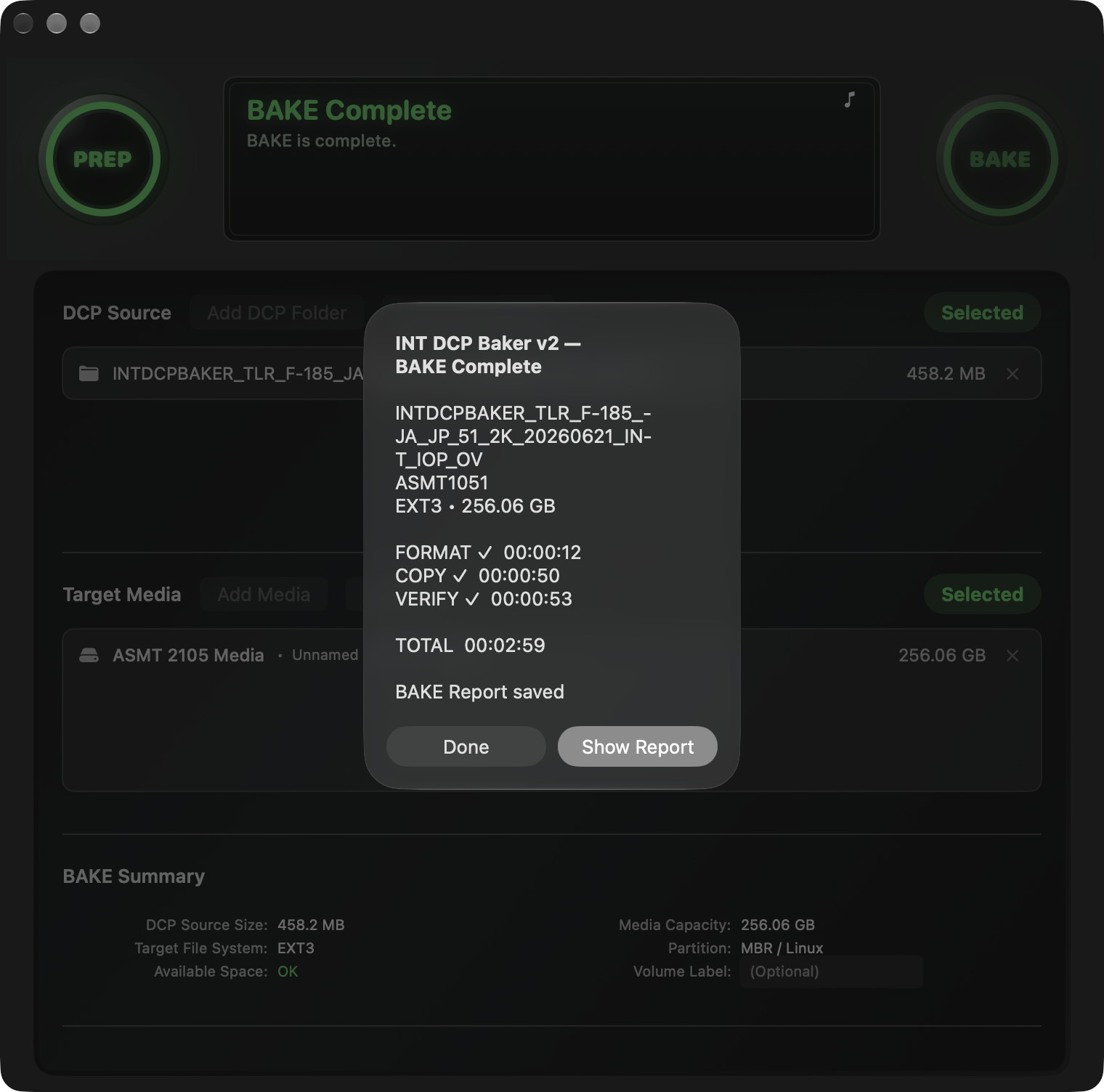
Use Show Report in the completion notification to check the result for the target media. Distinguish success, cancellation, and error; do not use media for delivery if VERIFY has not completed. You can change the Report destination in Settings.
For EXT2 / EXT3 media, macOS may display “The disk you attached was not readable by this computer.” Choose Ignore, not Initialize. If this appears during processing, first check Baker's end state (7.4).
Cancel
Use the upper Cancel button to open the stop confirmation, then choose Stop to cancel. Continue keeps BAKE running. Keep the connection intact until the result is final.
See 7.4 for removal, or 7.3 if the end state cannot be confirmed. After cancellation, select the source and target again as needed and start BAKE yourself. It does not restart automatically.
5.2 Multiple media
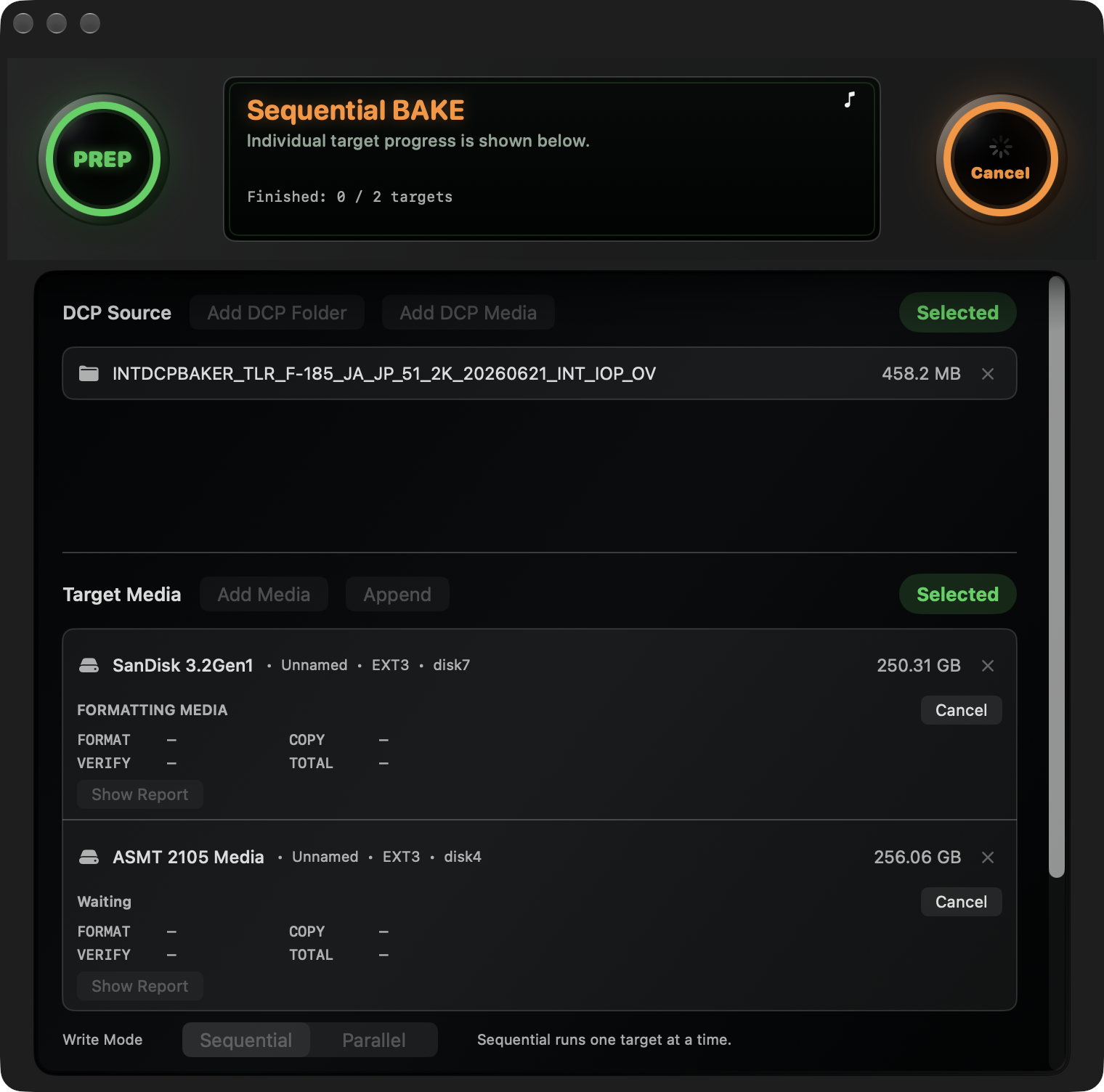
With two to four media selected, Write Mode offers Sequential or Parallel. The initial selection follows Settings. Review every target to be erased in the final confirmation before starting.
Sequential (Serial) processes targets one at a time, from top to bottom on screen. When a target has finished and its end state is confirmed, the next starts automatically. At most one target runs at a time.
Parallel processes multiple targets simultaneously.
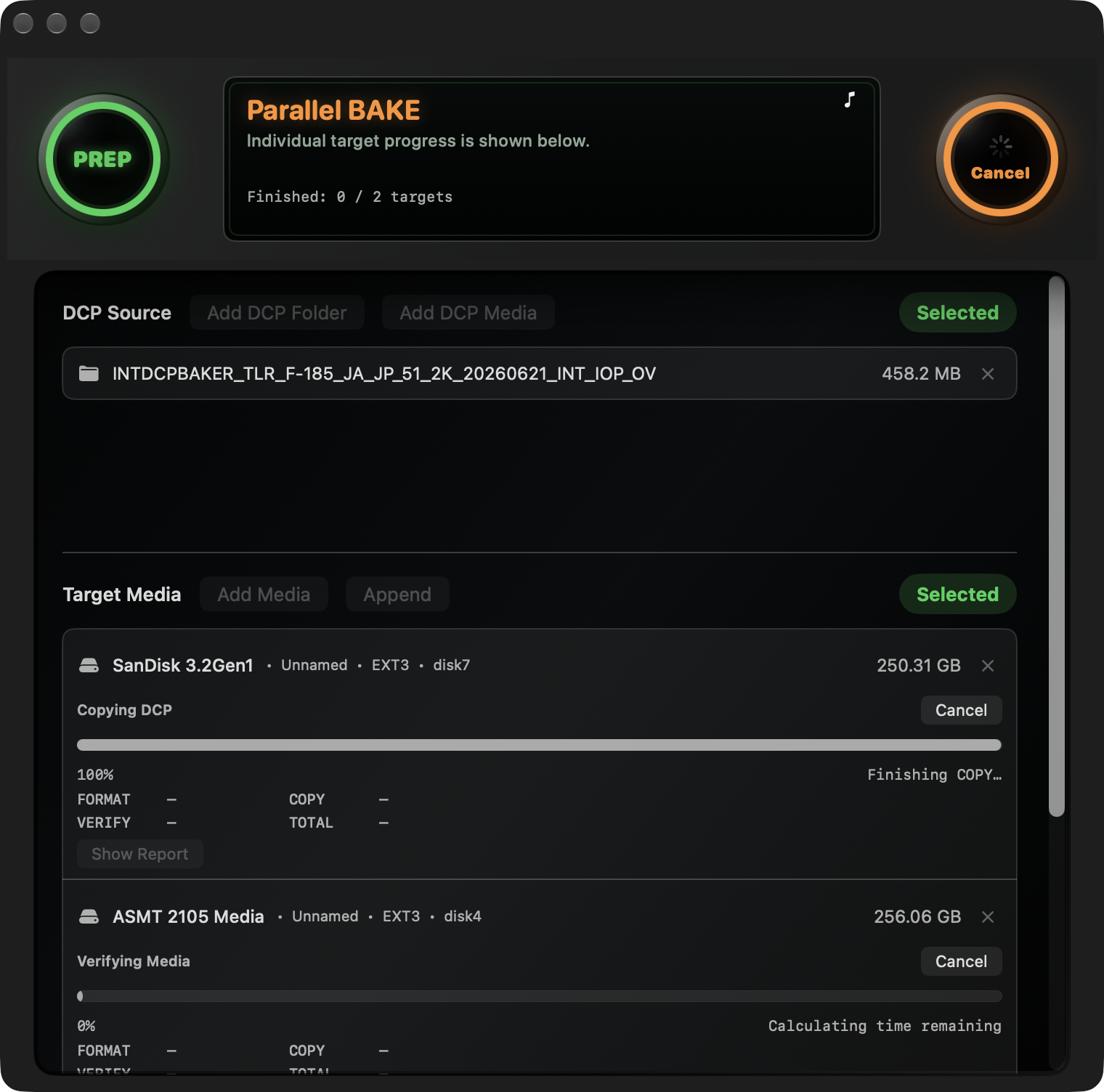
Target cards
Each card shows the media name, disk ID, format, capacity, phase, and COPY / VERIFY progress. Remaining time is shown when available and is specific to each target.
FORMAT / COPY / VERIFY / TOTAL are measured times for that medium. “—” means a phase has not started or a value is unavailable. Times already recorded remain visible after cancellation or error.
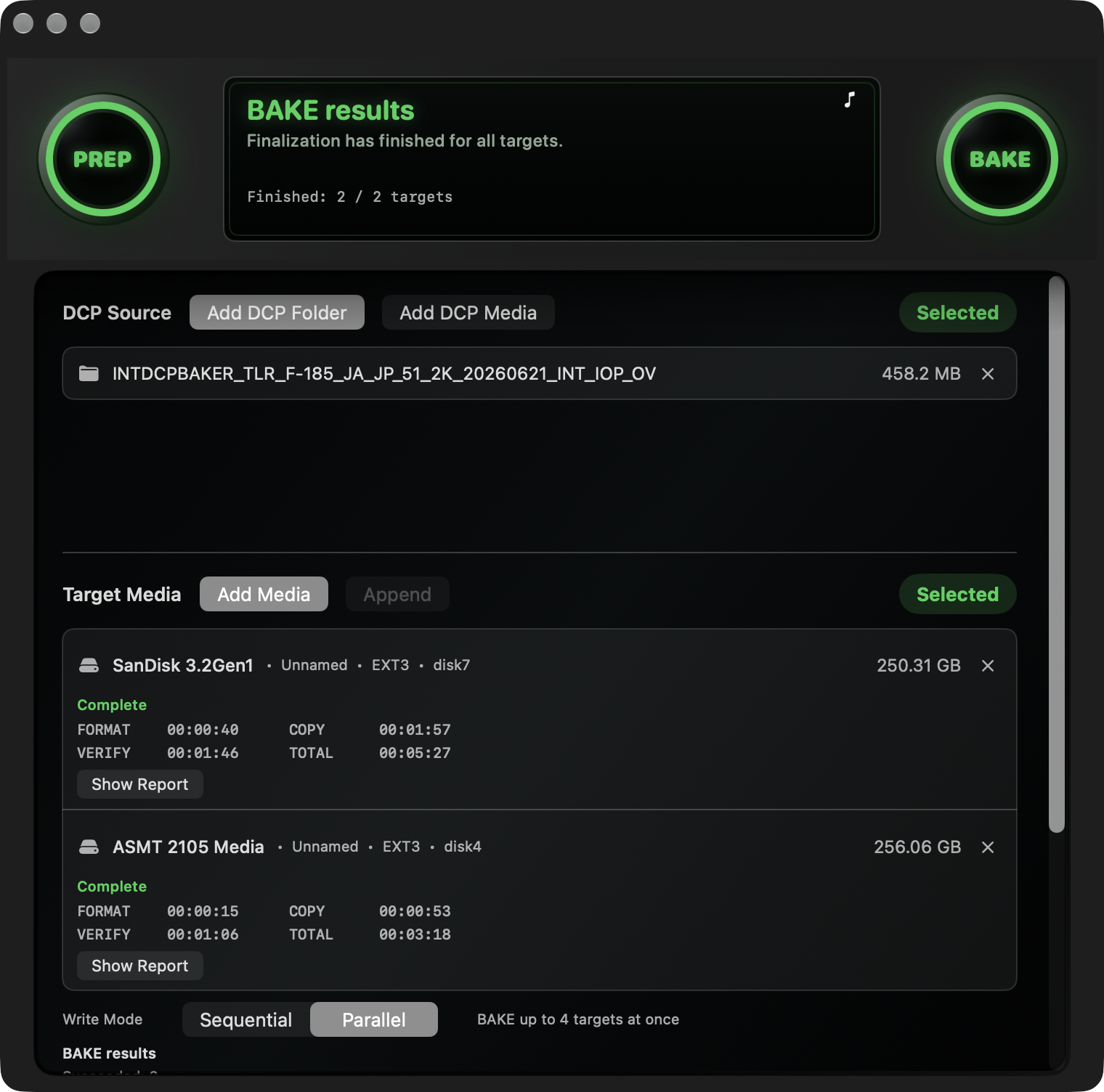
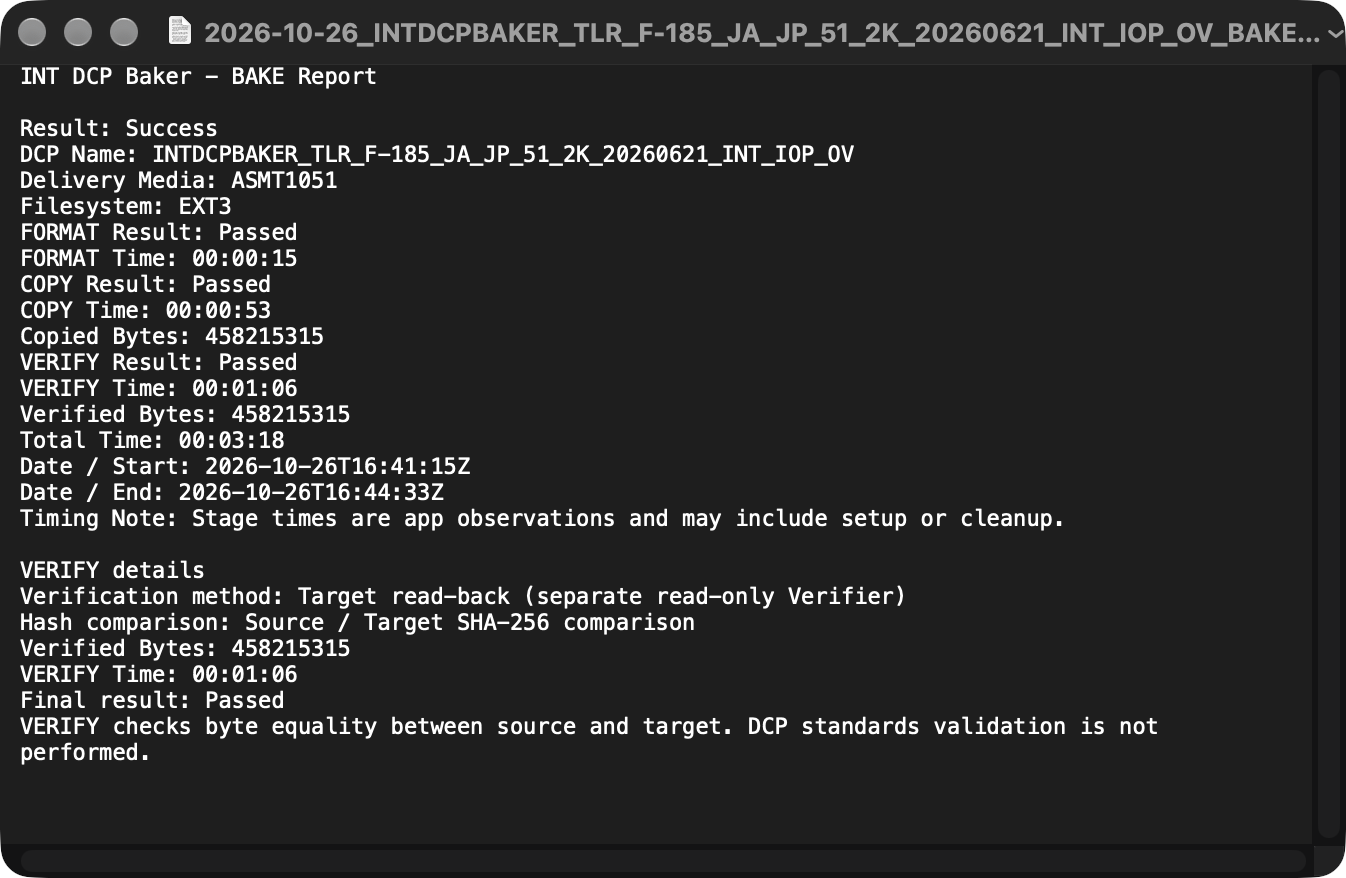
A card's Show Report opens the Report for that target. It is unavailable if no Report was generated, but remains usable after cancellation or error when a Report exists.
Individual and overall cancellation
To stop one target, use Cancel on its card. In the confirmation, choose Cancel if the media name is correct, or Continue to keep processing.
- Running target in Sequential mode: stops that target, completes finalization, and confirms its end state before proceeding to the next target that has not been cancelled.
- Waiting target in Sequential mode: removes it from the planned writes. When its turn arrives, any required finalization is completed and it is skipped without writing. Other running targets are not stopped.
- Running target in Parallel mode: stops that target while the others continue.
Cancelled cards remain in the list, with “not run” distinguished from “interrupted.” Duplicate requests cannot be made for targets already cancelling, cancelled, completed, or ended in error. If cancellation coincides with completion, check the final result. Sequential processing does not advance when a target's end state cannot be confirmed.
To stop the whole job, use the upper Cancel button and choose Stop. Sequential stops the running target and does not start later ones. Parallel requests a stop for every unfinished target. Overall cancellation takes precedence over individual cancellation; it is not a force quit.
Completion notifications
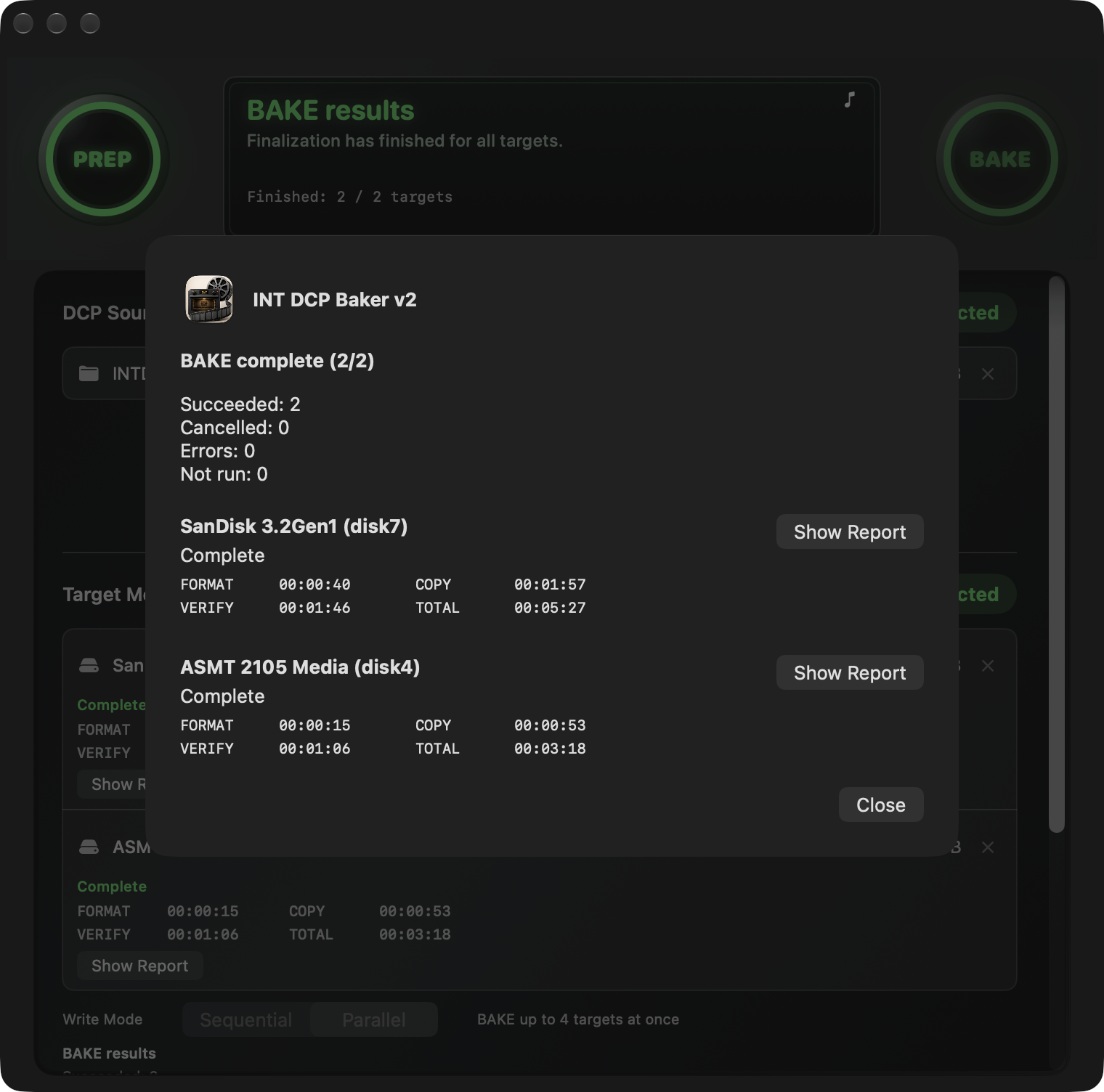
Sequential shows completion notifications for intermediate targets. Processing continues without closing an individual notification; when all targets finish, the overall notification replaces it. The overall notification is still shown if you closed an individual one. Parallel shows only the overall notification after all targets have ended, with no individual completion notifications.
The overall count is targets that completed BAKE successfully / total targets selected at the start. Cancelled targets, errors, waiting cancellations, and targets not run remain in the denominator. Examples include BAKE complete (4/4) for all successful, BAKE finished (3/4) with some cancelled, BAKE finished (2/4) with some errors, and BAKE cancelled (0/4) when all are cancelled. Zero successes may also include errors; do not infer “all cancelled” from the count alone.
5.3 Append (APPEND)
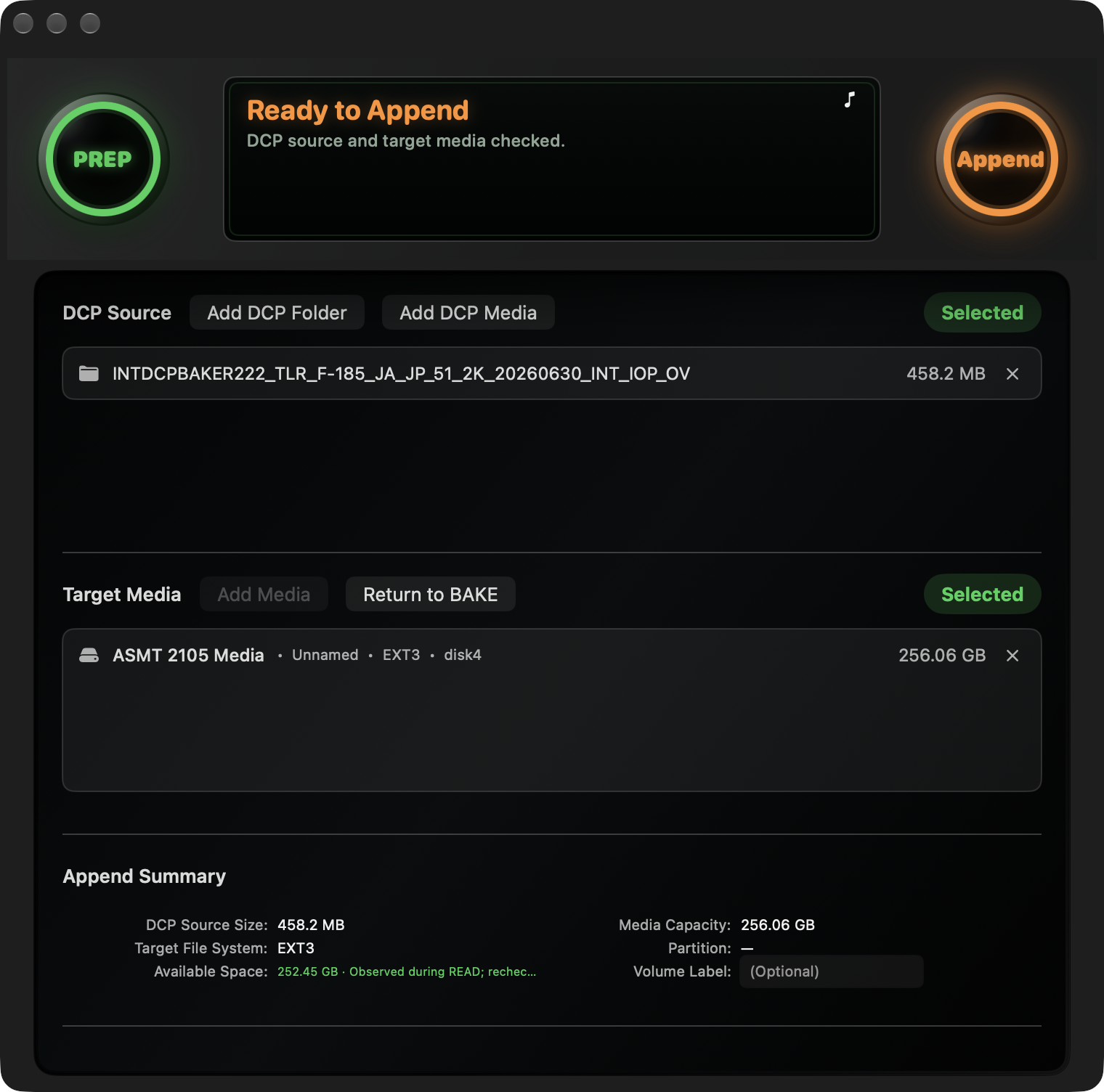
Append (APPEND) adds a new DCP to existing EXT2 / EXT3 media that meets the requirements. It does not FORMAT the media or overwrite or replace existing files. Each operation accepts one DCP and one target; it cannot replace an existing DCP with the same name.
Select the DCP to add and the destination. After format inspection, press Append in the target area. Read Switch to Append? and switch modes. When the requirements are met, the status display shows Ready to Append. The source and destination must be separate physical media.
Append uses the destination's existing file system and volume label. Changing EXT3 / EXT2 in Settings does not change its format. Return to BAKE switches back to normal BAKE.
Caution: Back up any data you need before appending, too.
Append (APPEND) does not guarantee the health of all existing data.
Starting and processing
Start with Append at the top of the window. Review Append DCP to Delivery Media before executing. Complete macOS authorization whenever requested. The media state, free space, and collisions with existing file or folder names are checked again at the start. Processing does not proceed if the requirements cannot be confirmed.
The added DCP goes through COPY, VERIFY, commit, and finalization. VERIFY checks the added DCP; it does not reread and verify every existing DCP. Open the record with Show Report in the completion result. Durably saved in the Report describes the append commit state; it does not indicate that every existing DCP has been verified or that the media is ready for removal.
Cancellation and errors
Request cancellation with the upper Cancel button, then check finalization and the result. Cancelling does not automatically delete a committed DCP to restore the previous state. Do not rename or delete an original DCP, or manually repair the destination media, to resolve collisions or errors.
If the added DCP is incomplete or its state is unknown, do not consider it ready for delivery. Check the Report and instructions. If the existing data or commit state is also uncertain, stop as described in 7.3. To append another DCP, close the result, review the new source and destination, and start again explicitly.
6. Settings
Open Settings from the application menu. You can manage the license, notification sound, BAKE Report destination, target file system, and default write mode for multiple media.
6.1 License
License… opens the activation panel. See Chapter 3 for activation and retained license information.
6.2 Notification sound
Play notification sounds controls the same setting as the musical-note button at the upper right of the status display. When enabled, successful completion plays the completion sound; failures play the macOS alert sound.
6.3 Report destination
Use Choose… under BAKE Report destination to change the destination. The default is ~/Documents/INT DCP Baker/Reports. Make sure the selected destination is accessible before starting work.
6.4 File system
Target File System selects EXT3 or EXT2 for normal BAKE. Normally use EXT3; choose EXT2 when requested by the recipient. This setting cannot be changed during processing. Append (APPEND) retains the existing format and does not reformat the destination according to this setting.
6.5 Write mode for multiple media
Default Multiple Target Mode saves the initial Sequential / Parallel selection for the next job. Sequential is the default. Changes persist after restarting the application.
Write Mode in the main window applies only to the current job and does not change the saved setting. A manually selected mode is not overwritten when sources change or targets are detected again. Changing Settings does not change a job being prepared or run; it applies to a new job after the result is closed. Settings do not remove restrictions such as those for EXT sources.
7. Troubleshooting
If the end state is unknown, keep the media connected and follow the on-screen instructions first. The Report and error details provide records for investigating the cause.
7.1 Sources, media, and preparation
Ready to BAKE is not displayed
Check source recognition, media connection, capacity, selected mode, Trial status, and any unfinished-operation notice. Remaining in a list does not necessarily mean an item is usable. Background checks do not allow a start when a fault or changed information is detected.
Source or media not found
Before processing, check the connection and power, then Rescan or select again. Reselect sources that have been moved or renamed. Do not delete original DCP files or attributes to clear an error. During processing, check the end state first.
Target identity errorTARGET_IDENTITY_UNVERIFIED and similar errors mean that the selected media's identity could not be confirmed. Check its name, capacity, and connection. Do not attempt FORMAT while identity is uncertain, or continue on the basis of a disk ID alone.
Insufficient space or a time shown as “—”
Normal BAKE also needs space for file system metadata. Append (APPEND) requires free space beyond that occupied by existing data. A time of “—” may mean not started or unavailable; it is not a successful zero-second operation. Remaining time is an estimate that can change just after starting or between phases, and may not always be displayed.
Append (APPEND) cannot start
Check the one-DCP / one-target requirement, confirmed EXT2 / EXT3 format, required capacity, and name collisions. If you need to retain existing data, do not solve an Append problem by switching to BAKE, which erases the target.
7.2 Authorization, cancellation, and errors
If you explicitly cancel macOS authorization before writing, selections are retained while safety conditions are checked again. When those conditions are met, Baker returns to normal preparation without automatically retrying. To resume, start BAKE again yourself. Insufficient privileges, authorization-service faults, and failures after processing starts are not treated as this user cancellation.
Cancellation after the start does not undo completed FORMAT or writes. Finalization continues after a request is accepted, so do not unplug cables or force quit before a result is shown. Use the upper overall Cancel for Single / Append (APPEND), or the card's individual Cancel to stop only one of multiple targets.
On error, check the affected media and message, and retain the Report if available. Do not repeatedly BAKE or erase in another format merely to clear an error. For multiple media, treat success, failure, cancellation, and not run as separate results for each target.
7.3 Finalization and Recovery
Checking cleanup… and Recovery pending · retry unavailable indicate that the end state has not yet been confirmed. Recovery provides instructions for checking and recovering an unfinished state; it does not necessarily require you to perform a repair.
Keep the media connected and follow the display. Stop if running again is prohibited. If the application refuses to quit, do not bypass this with a force quit. Do not erase, repair, delete related files, or forcibly disconnect media while the state is uncertain. Retain the screen and Report, and send Support the information in 7.5.
7.4 macOS disk warning and media removal
For EXT2 / EXT3 media, macOS may display “The disk you attached was not readable by this computer.” Choose Ignore, not Initialize.
Disconnect media only after checking the operation result and finalization, with no unresolved Recovery. If macOS offers an eject action, eject normally in Finder or equivalent before disconnecting. EXT2 / EXT3 media may not appear as normal volumes in standard macOS, so visibility alone does not establish whether BAKE succeeded.
Eject the source SSD separately from the target. On macOS 27, system processes used to browse the source may prevent ejection. After work ends, quit Baker normally and try normal ejection. Baker does not automatically eject the source SSD, and its exit assistance does not guarantee resolution of every eject failure. If ejection fails, do not forcibly remove the drive or manually terminate processes; report the situation to Support.
7.5 Support
Contact the support channel listed with the product distribution. Include the application and macOS versions, time of the problem, preceding action, displayed message, media name and capacity, connection method, processing mode, and Report. If prompted to save error details, retain that record as well. Do not include license keys or unnecessary personal information.
8. Uninstalling
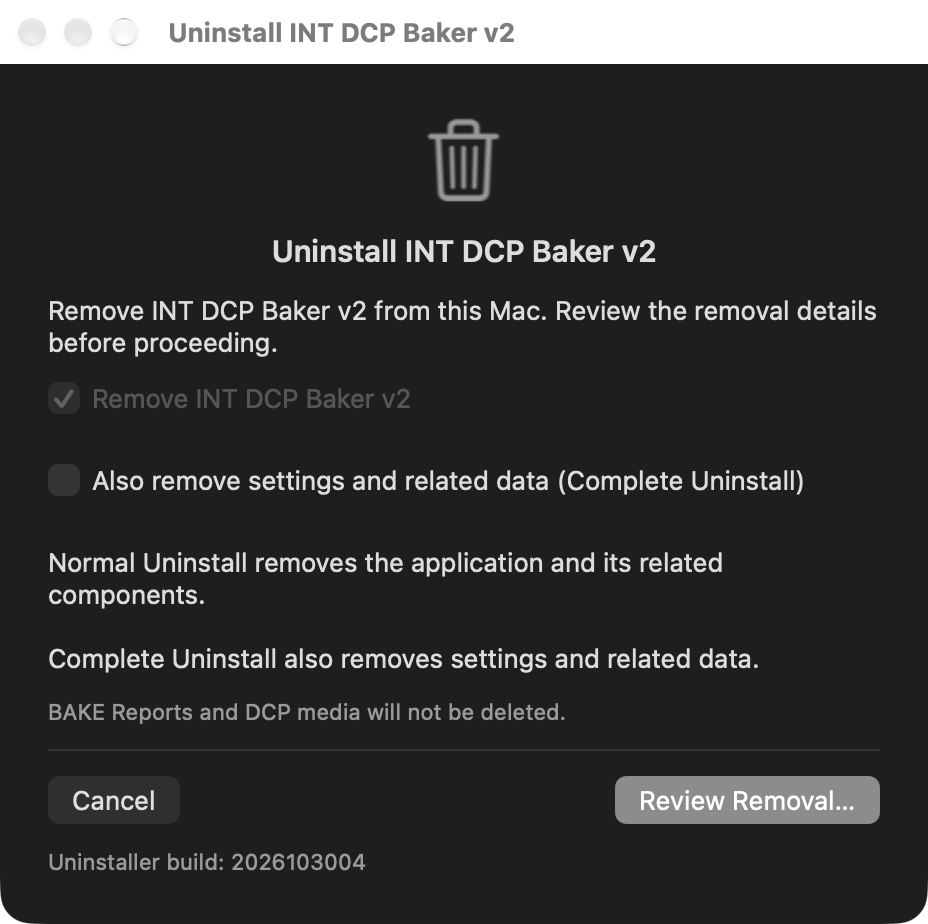
Finish BAKE, Append (APPEND), and any finalization after cancellation, then quit Baker normally. Open Uninstall INT DCP Baker in Applications / INT DCP Baker v2. This is separate from the v1 uninstaller. If a media operation is still in progress, follow the application instructions to finish it first.
Remove INT DCP Baker v2 is required and remains selected. Also remove settings and related data (Complete Uninstall) is OFF by default. Normal Uninstall removes the application, uninstaller, Docs, and product-managed runtime and services, while retaining settings and saved license activation information.
Complete Uninstall also removes this user's settings, app caches, saved application state, and saved license activation information. Both modes retain BAKE Reports and their destination setting, DCP sources, and v1. After a complete uninstall, enter the license key again and activate online if required.
If the product folder contains items outside the removal scope, such as files you added, those items and the folder are retained and reported. If removal does not finish, end any ongoing operation and run the Installer again to restore product components, then retry the Uninstaller. Do not bypass this by deleting related files manually.
Choose Review Removal… and check the selected mode and the items to be removed or retained. Removal does not start on this screen. Cancel returns to the selection screen. When you are ready, choose Uninstall and complete the standard macOS administrator authorization.
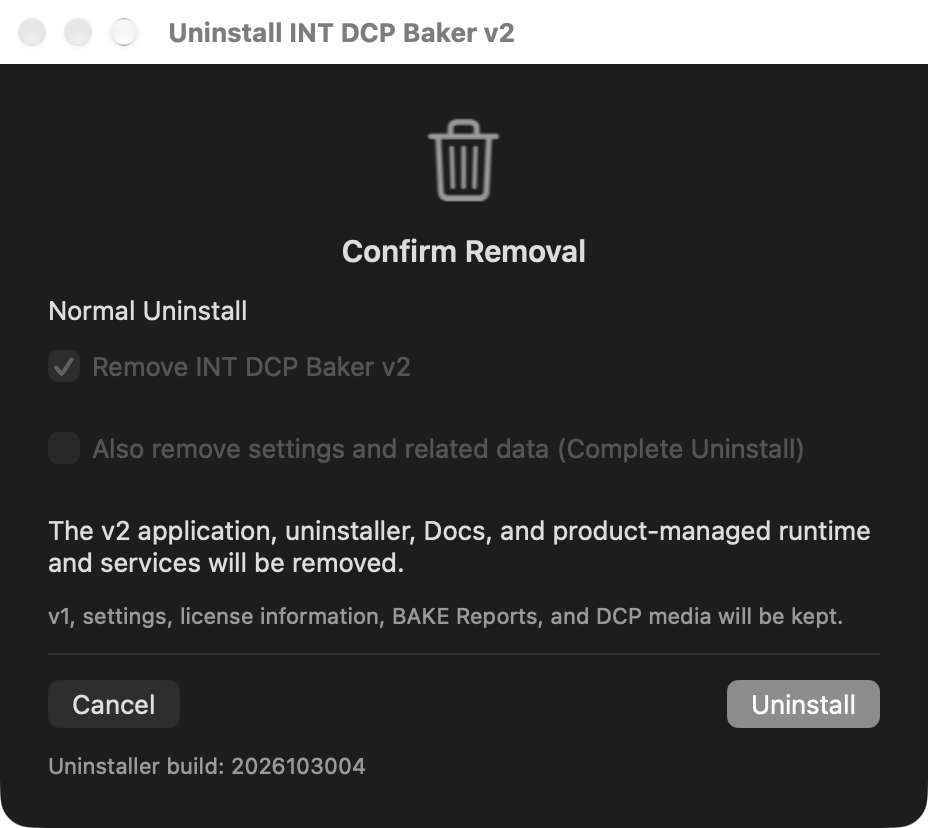
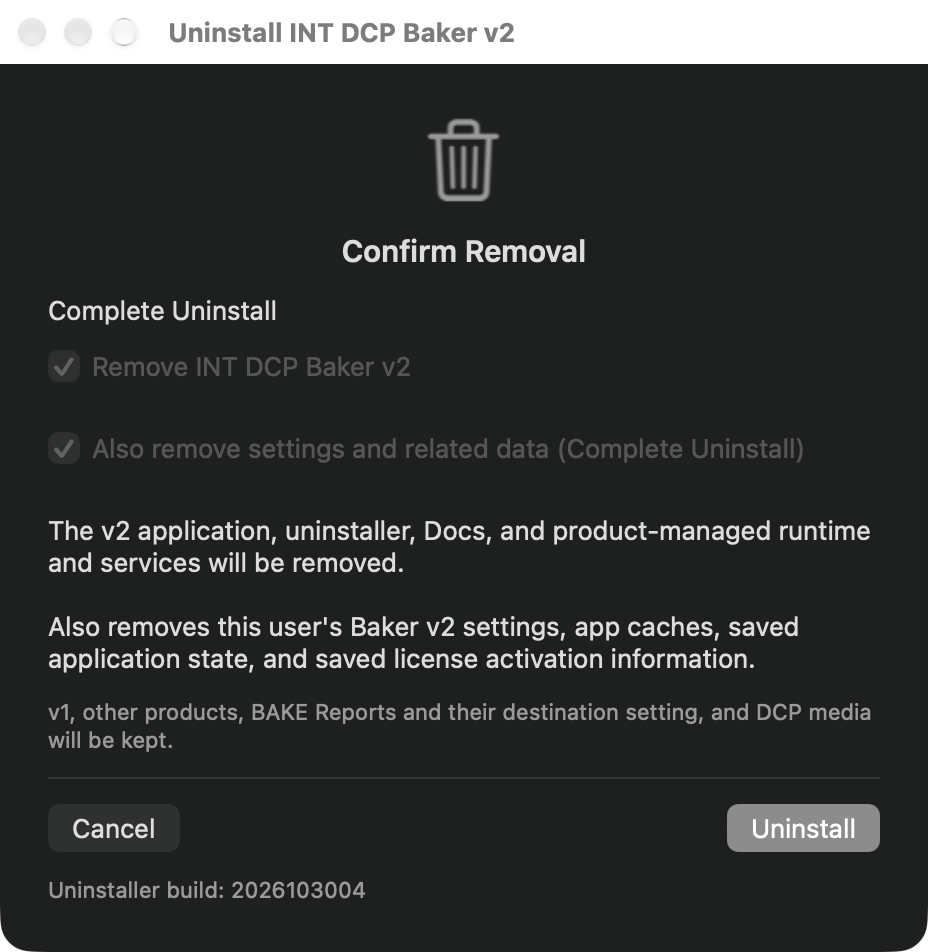
Check the completion message. After successful removal, the uninstaller itself and the empty product folder are also removed. The completion screens for Normal Uninstall and Complete Uninstall show the items retained by each mode.
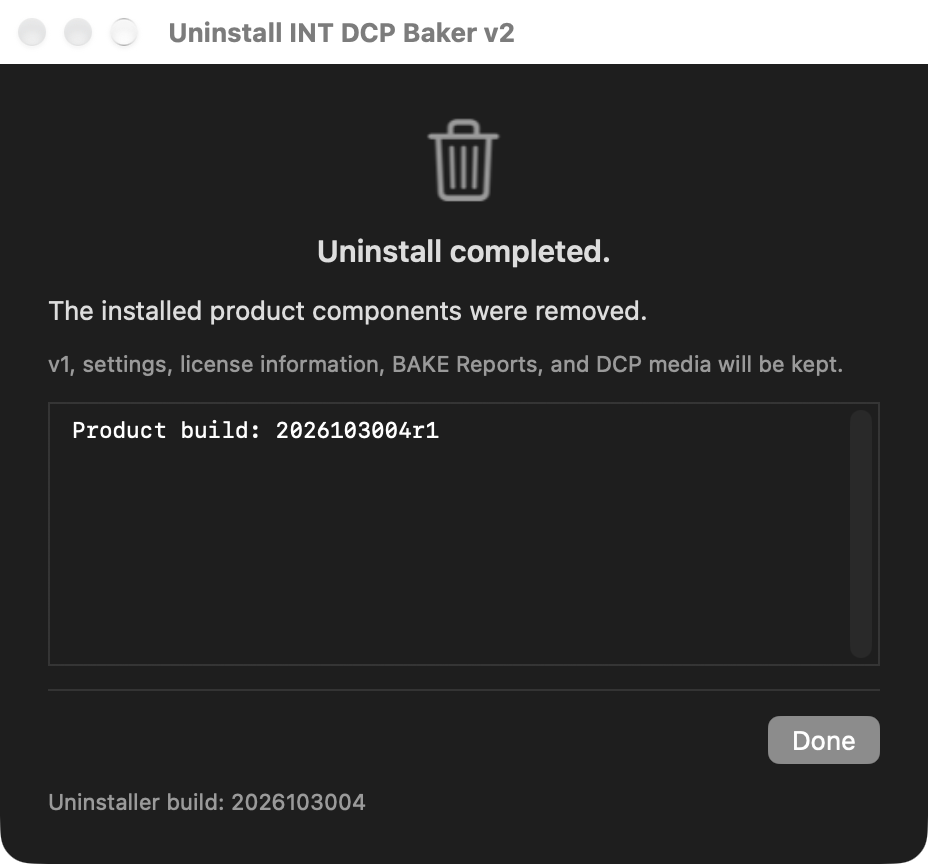
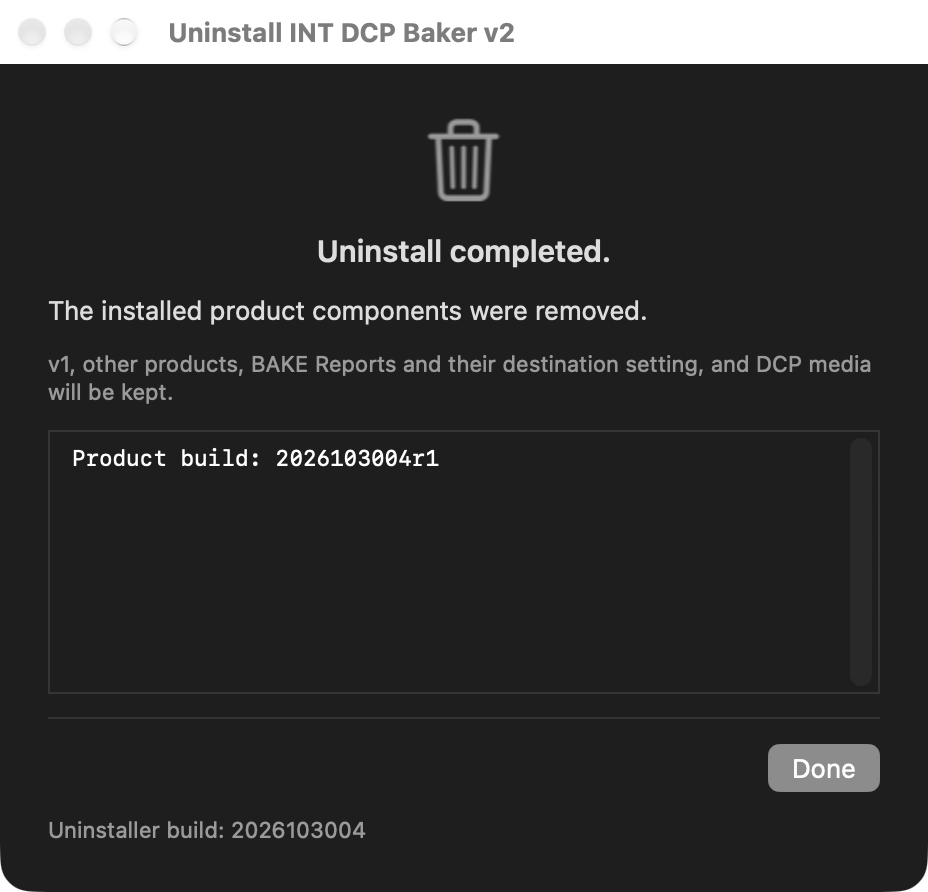
Appendix A Technical information
A.1 Operating environment and scope
This guide is based on an Apple Silicon Mac running macOS 27.0.1. Check the product distribution information for supported Macs and macOS versions.
The interface supports Japanese, English, Simplified Chinese, and Traditional Chinese. Normal use requires an existing DCP, suitable target media, a stable connection, and an administrator account able to complete macOS authorization. License activation uses an internet connection.
| Item | Specification |
|---|---|
| Normal BAKE | EXT3 or EXT2. Formats the media and writes the DCPs |
| Multiple media | Up to four. Sequential runs top to bottom, one at a time; Parallel runs simultaneously |
| Parallel sources | Mac-readable DCP folders. Use Sequential for EXT source media |
| Append (APPEND) | One DCP / one target; eligible EXT2 / EXT3. No FORMAT, overwrite, or replacement of existing files |
| Sources | Read-only. Original DCPs are not modified |
| DCP placement | Each DCP is placed in its own folder |
A.2 Media formats and identity
EXT2 / EXT3 are file systems used to organize files on the media. MBR is a partitioning scheme; normal BAKE creates an MBR Linux partition. You do not need to prepare MBR separately.
Source / Target mean the read source and write destination. The application checks target identity again before starting and refuses media that differ from the selection or cannot be identified. The displayed disk ID is the current device address, not a permanent identifier that always refers to the same medium after reconnection.
Volume Label has a 16-byte UTF-8 limit. Multibyte text, such as Japanese, therefore needs fewer than 16 characters. This is a label for the target, separate from the DCP name.
Direct BAKE prepares delivery media from DCP sources without requiring you to create and reselect a disk image first. This describes the workflow, independently of whether internal working storage is used.
A.3 COPY, VERIFY, and Report
During COPY, hashes are calculated from the data being written. A hash is a value used to compare content. COPY VERIFY independently reads back the target files and compares them with the COPY-time hashes. It does not read and hash all source data in advance during PREP.
VERIFY checks the written data. It is separate from DCP Validation and does not guarantee picture, sound, or subtitle content, standards compliance, or cinema playback compatibility. Check CPLs (DCP composition information), KDMs (playback-authorization information), and the recipient's acceptance requirements separately. Append (APPEND) verifies only the newly added DCP.
Reports record the target media, operation date and time, result, and available phase times. Distinguish success, interrupted cancellation, not started / not run, error, and unresolved Recovery. Do not assume that a phase ran when its value is absent. FORMAT / COPY / VERIFY / TOTAL are measurements for that medium, not totals copied from all targets.
In addition to Show Report in notifications and cards, Open saved BAKE result… opens earlier records. A past Report is not a fresh verification of currently connected media. Report controls are unavailable if no Report was generated, but can be used after cancellation or error when a record exists. Retain Reports as delivery records and check for private information before forwarding them.
A.4 Updates, reinstallation, and document information
Use the Apple Silicon or Intel Installer for this Mac to update, reinstall, or repair v2. Quit Baker normally first. If installation or uninstallation is interrupted, finish any active physical-media operation, then run the Installer again to restore product components. This does not restore user settings or license information that you deleted. Removing v1 is not required.
This guide covers INT DCP Baker v2.0.0. Document revision: 1.2. Document date: October 30, 2026. The Installer and Uninstaller instructions apply to distribution build 2026103004r1.